
Quick answer: To check whether a WordPress plugin has a known vulnerability, record its exact installed version and genuine plugin slug, consult the vendor’s security advisory and a maintained WordPress vulnerability database, and compare the affected version range with your installation. Check for a fixed version and evidence of exploitation, then prioritize and test the appropriate update or mitigation. An available update is not automatically a security patch, while a scanner reporting “no known vulnerabilities” does not guarantee that the plugin is safe.
WordPress plugins extend a website’s capabilities, from contact forms to ecommerce integrations. Some are maintained by the WordPress.org community, others are commercial, custom, or supplied by a hosting provider. Their security status can change as researchers disclose vulnerabilities and maintainers release fixes. The challenge for a business owner is knowing exactly which component is installed and how a published finding applies to it—not just reacting to alarming headlines.
This guide provides a repeatable workflow using the installed-plugin inventory, WordPress.org information, Wordfence Intelligence, WPScan and selected government vulnerability resources. It covers how to interpret advisories, why version matching matters, when a patch is urgent, and what to do when no fix exists. The examples are illustrative, not claims that Defendoria audited an actual plugin on a customer’s website.
- Identify the exact plugin slug, vendor, installed version and whether it is active.
- Check the plugin’s official changelog, support page and security notices.
- Search a credible WordPress vulnerability database using the exact identity.
- Compare your version with the advisory’s affected range and fixed release.
- Prioritize by exploitability, public exposure, business impact and evidence of active abuse.
- Back up, test, patch or mitigate, then verify the resulting version and site behavior.
Do not run intrusive exploit proof-of-concept code against a site just to determine whether it is vulnerable.
How do I know which WordPress plugin and version are installed?
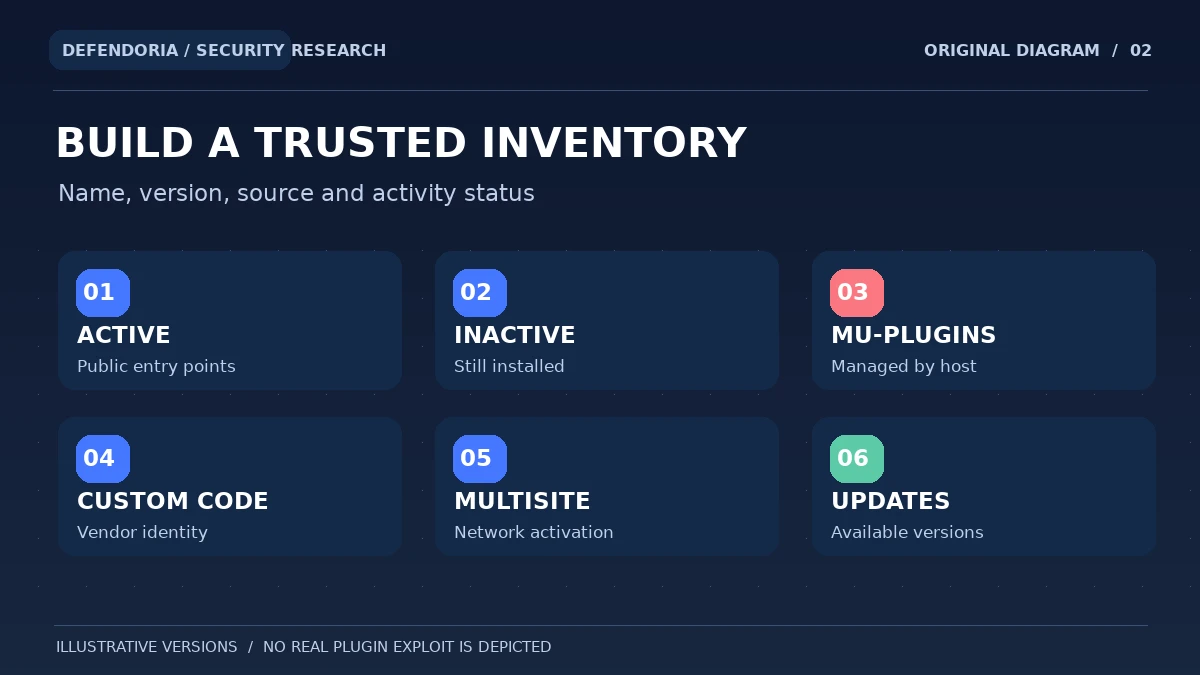
In WordPress, an authorized administrator can open Plugins → Installed Plugins to review names, status and update notices. Record the version displayed for the exact plugin. Be careful with similarly named plugins: two different vendors may use nearly identical display names, but advisories generally identify a particular codebase or WordPress.org slug. A custom or white-labeled extension may not share the slug used in a public advisory.
Use the actual filename or package identity as appropriate, then verify the author and download source. If you manage several sites, make a per-site inventory instead of assuming all customers run the same version. A network-activated Multisite plugin can affect several sites, and inactive plugins can still leave code on disk that deserves maintenance or removal. Must-use and host-provided components may appear in different inventory categories.
Experienced authorized administrators can use WP-CLI’s read-only plugin inventory command, which lists plugin names, versions, status, update availability and optional WordPress.org status fields. Running a legitimate inventory command is not the same as vulnerability exploitation, but never execute administrative commands on a system without permission.
wp plugin list --fields=name,status,version,update,update_version --format=table
Run only on a WordPress installation you are authorized to administer. The command reports installed versions and update indicators; it does not independently prove whether any plugin version is vulnerable.
Should I include inactive and must-use plugins?
Yes. Deactivating a plugin is not identical to removing its files, and certain environments load must-use plugins automatically. Inventory all installed components and their actual exposure. An inactive plugin may present less application-level attack surface than an active one, but leaving abandoned code indefinitely still complicates maintenance and incident analysis. Ask the host about components it manages or updates automatically.
Where can you find reliable WordPress plugin vulnerability information?
1. Plugin developer and official changelog
The vendor’s security notice, changelog or release notes can identify affected versions and the corrected release. It is particularly important for commercial or custom software that may not appear in WordPress.org. A vague changelog entry such as “security improvements” warrants checking the vendor’s support channel rather than claiming a specific CVE exists.
2. Wordfence Intelligence vulnerability database
Wordfence maintains public WordPress vulnerability records and offers a structured feed. An important 2026 change: versions 1 and 2 of its vulnerability data feed were deprecated and shut down, while v3 requires an account and API key even for free access. Do not build an audit around an obsolete unauthenticated endpoint. The public record and API terms should be checked for current availability.
3. WPScan vulnerability intelligence
The WPScan project tracks known WordPress plugin, theme and core issues and provides scanning products that can match software versions. Its WordPress.org scanner-plugin listing explains that an API token is used for vulnerability data. Understand the tool’s coverage and limits; a clean result is not a universal safety certificate.
4. CVE and NVD records
A CVE identifier can help link vendor advisories and other reports about a vulnerability. The NIST National Vulnerability Database may add technical details, affected product information and CVSS assessments, but processing or enrichment can lag. The existence of a CVE alone does not establish that your particular installed version is affected.
5. WordPress.org plugin listing
The directory can show plugin details, updated versions and notices when a plugin is closed or untested. A directory closure may happen for security issues, author requests, guideline violations or other reasons; a “closed” status does not by itself prove a vulnerability. Likewise, “tested up to” is a compatibility signal rather than an exploit finding.
6. CISA’s Known Exploited Vulnerabilities catalog
The KEV catalog focuses on vulnerabilities with evidence of exploitation in the wild. If a matching vulnerability is listed, that changes operational urgency, but a vulnerability not yet in the catalog may still be dangerous. CISA encourages organizations beyond federal agencies to use the catalog as one input for risk-based prioritization.
How to match an advisory to your installed version
A security advisory generally lists a plugin identity, vulnerability description, affected version range and, where available, a fixed version. Read these as distinct pieces of evidence. For example, suppose an imaginary plugin’s advisory says versions 2.0 through 2.4 are affected and version 2.5 fixes the issue. A site running 2.3 would match that example range, but 2.5 should not be classified as affected by that same advisory without other information. These version numbers are invented for illustration, not a live disclosure.
Some advisories say “before 3.1.7,” “through 4.0.0,” or provide different affected branches. Version comparison rules can be subtle, especially with backported patches, premium editions, beta builds or vendor-specific suffixes. A major version number alone is insufficient. Check the advisory’s exact wording and release notes, then verify the version installed after any update. If a record is disputed or incomplete, note the uncertainty instead of making a definitive vulnerability claim.

Share the plugin name and relevant security concern to discuss an authorized WordPress review. Do not provide passwords or private access tokens in this form.
What details in a WordPress vulnerability record actually matter?
1. Affected software and edition
Confirm the plugin’s WordPress.org slug, vendor name, commercial edition, add-on and branch. Some vulnerabilities affect only a premium module or a specific integration. A record about a similarly named extension should not automatically be applied to another vendor’s code.
2. Authentication requirements
A vulnerability requiring an administrator login presents a different attack path from an unauthenticated public endpoint, although administrator-level flaws can still be serious. Read whether the attacker needs subscriber, contributor, editor or another role. Consider your site’s user registration and permissions.
3. Vulnerability type and consequences
A record might describe cross-site scripting, SQL injection, privilege escalation, arbitrary file upload, information disclosure or another weakness. The wording describes possible impact, not proof of exploitation. Assess whether the relevant feature is enabled and reachable on this site.
4. Fixed version and mitigation
Look for a release that corrects the problem and any vendor-recommended temporary restrictions. Some issues may have no public patch yet; a maintained vendor may issue guidance while developing one. Distinguish official advice from unverified comments and do not install a replacement zip from a suspicious third-party link.
5. Public exploit and exploitation evidence
A proof of concept may exist without confirmed exploitation in the wild. Wordfence reports, vendor incident notes or CISA KEV entries may help establish observed malicious use. A high CVSS score is a severity metric, not a complete business risk calculation, as NVD explicitly explains.
6. Date, record freshness and uncertainty
Record when you checked the source, when the advisory was updated and whether its affected range has changed. Vulnerability records may be revised after new analysis. Recheck important findings before taking disruptive production action, especially when vendors dispute a report or publish a backport fix.
How should you prioritize a confirmed plugin vulnerability?
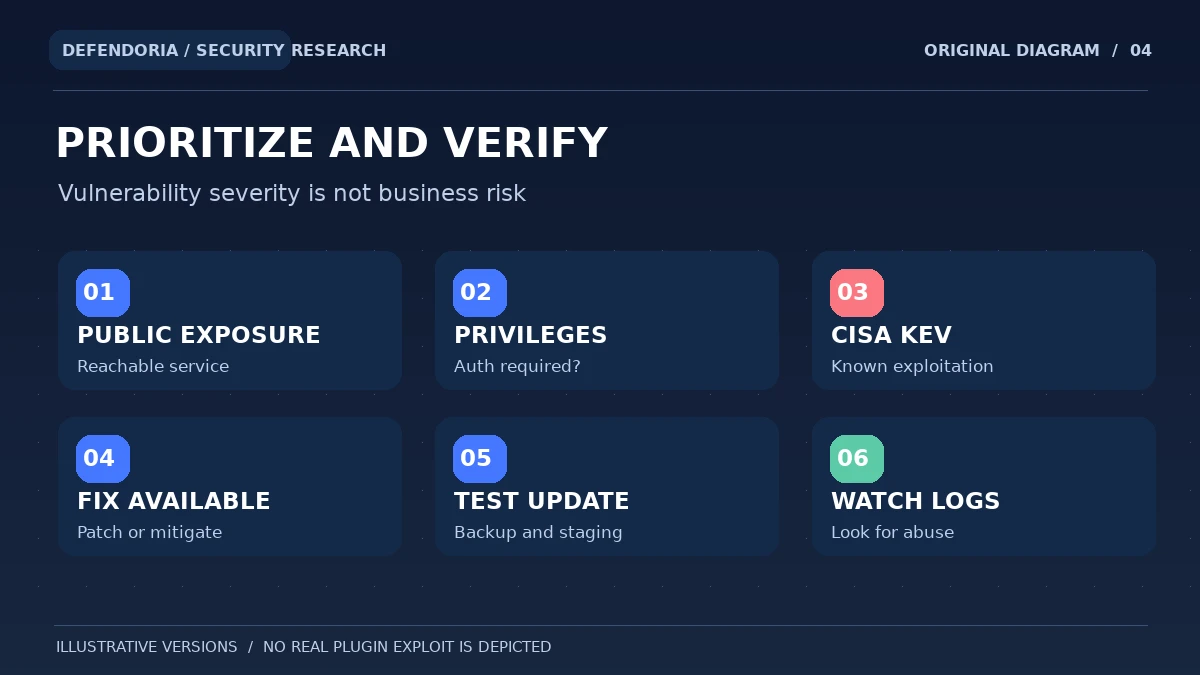
Severity matters, but business risk depends on more than the CVSS number. An unauthenticated vulnerability on a public contact form might be more immediately relevant to one site than a higher-scoring issue in a disabled feature available only to trusted administrators. Conversely, a vulnerability requiring a low-privilege login can be very important on a membership website where any visitor can register. Consider actual exposure, exploitation reports, data sensitivity and operational impact.
CISA’s Known Exploited Vulnerabilities catalog is particularly useful because it is based on evidence of active exploitation. It does not cover every WordPress vulnerability, so absence from the catalog must not be interpreted as proof of safety. Use vendor advisories and reliable research together. If the issue is remotely exploitable and a patch is available, involve the site owner promptly to plan a controlled update and inspect relevant signs of compromise where appropriate.
| Finding | Reasonable response | Caution |
|---|---|---|
| Confirmed affected version; patch available | Back up, test and update promptly according to risk | Check features and installed version afterward |
| Active exploitation reported | Prioritize containment, patch or mitigation and investigate abuse | Patching alone may not remove an existing compromise |
| No fixed version yet | Review vendor mitigation, disable affected feature or replace responsibly | Do not install an untrusted “hotfix” |
| Plugin name similar but version unclear | Confirm slug, edition and actual code | Avoid false-positive vulnerability claims |
| No record found in scanner | Continue maintenance and monitoring | Undisclosed issues may exist |
What to do if your installed version is vulnerable
1. Preserve a versioned backup and change record
Before updating, confirm reliable backups of files and database as required by the site, and retain the evidence needed to understand what changed. Write down the plugin slug, affected installed version, advisory source and reason for urgency. A backup made after an intrusion may itself be compromised; do not confuse disaster recovery with forensic evidence.
2. Follow the legitimate vendor update channel
Get the fixed release through WordPress.org, the plugin’s official update system or the trusted vendor account. Check compatibility with current WordPress, PHP and dependent plugins. Avoid unknown download mirrors and unsolicited zip attachments claiming to contain emergency security patches.
3. Test the highest-value workflows
Where feasible, test in staging first, especially for ecommerce stores, booking tools, forms and customer portals. Confirm that the plugin’s important functions still work and that the site does not display fatal errors or lose customer data. An emergency patch may warrant an accelerated process, but it should still have a rollback owner.
4. Verify version and configuration after deployment
After updating, check that the installed version is the intended fixed release and the affected feature is correctly secured. Some changes require a feature toggle or additional configuration, so read the vendor advisory rather than assuming package installation completes every step. Ensure that inactive and network installations were not overlooked.
5. Review signs of earlier exploitation where justified
A patch stops a known weakness in updated code, but cannot automatically undo content injections, unknown admin accounts or malicious files left by an earlier intrusion. If evidence indicates that the vulnerability may have been used, examine relevant logs, access changes and affected behavior with authorized responders.
6. Document the outcome and keep monitoring
Record the patch time, final version, tests, open risks and who approved the action. Revisit the advisory if researchers revise the affected versions or recommend further mitigations. Ongoing scanning and vendor updates help reduce future surprises but cannot prove permanent safety.
What if an advisory is wrong or the plugin has no patch?
Not every vulnerability report is final. A vendor may dispute the findings, issue a backported patch, or clarify that a certain premium add-on is the affected component. If your installed version looks like a match but the details conflict, preserve both sources and ask the legitimate vendor or a qualified responder for clarification. Do not claim the site is hacked simply because a database lists a possible weakness.
If the issue has no fix, decide whether a supported temporary restriction, feature shutdown or safe replacement is possible. A business-critical plugin may have integration dependencies, so removing it without planning can break forms, orders or membership access. However, leaving an exposed high-impact vulnerability unchanged indefinitely may be more dangerous. Document the trade-offs and obtain the owner’s approval for the chosen mitigation.
Common mistakes when checking WordPress plugin CVEs
- Looking only at the display name instead of the real plugin slug and vendor.
- Assuming every available plugin update is a security fix.
- Treating a high CVSS score as proof of exploitation on this site.
- Assuming a scanner with no findings guarantees all installed code is safe.
- Ignoring inactive, must-use, custom, premium or network-installed plugins.
- Using retired vulnerability feed endpoints that no longer supply data.
- Installing a supposed hotfix from an unverified third-party download.
- Updating without backups, staging or tests of important business functions.
- Assuming a patch removes malware that an earlier exploit may have installed.
- Publishing exploit claims without checking the advisory’s affected versions.
Frequently asked questions about WordPress plugin vulnerabilities
How do I check if a WordPress plugin is vulnerable?
Identify the exact installed slug and version, then review the developer’s advisory and a maintained vulnerability database such as Wordfence Intelligence or WPScan. Match the affected version range to your site and confirm whether a fixed release exists. Do not rely on a plugin’s name alone.
Does WordPress tell me when a plugin has a CVE?
WordPress commonly shows plugin update notices and directory information, but an update notice is not the same as a complete vulnerability assessment. Security intelligence tools and vendor advisories provide additional context. Review the actual installed version and the advisory before concluding that a CVE applies.
Is an outdated plugin always vulnerable?
No. An older version may have no publicly known vulnerability, though unsupported software still presents maintenance and future risk. A newly updated plugin may also contain an undisclosed flaw. Use accurate version matching, credible intelligence and ongoing maintenance rather than a simple old-versus-new label.
What is a WordPress plugin CVE?
A CVE is a public identifier for a documented vulnerability. A record may include affected products, descriptions, references and severity information. It does not by itself prove that your site uses the affected release or that an attacker has exploited it.
Can inactive plugins be exploited?
An inactive plugin generally executes differently from an active one, but its files may remain present and certain environments can expose files or related components. Assess the actual attack path and remove abandoned software through a controlled process rather than assuming deactivation eliminates every risk.
What if no vulnerability is listed in WPScan or Wordfence?
That means the checked source did not return a matching known record at that time, not that the plugin is guaranteed secure. Newly discovered or undisclosed vulnerabilities may not yet appear. Continue updates, access controls, monitoring and review of vendor advisories.
Should I immediately uninstall a plugin with a vulnerability?
It depends on severity, exposure, exploitation evidence, available patch and the site’s dependencies. A trusted update may be the best approach; sometimes a temporary feature restriction or replacement is necessary. Preserve backups and obtain authorization before disruptive production changes.
What is CISA’s Known Exploited Vulnerabilities catalog?
It is a catalog of vulnerabilities with evidence of exploitation in the wild. A matching listing is a strong prioritization signal, but absence from the catalog does not make a vulnerability harmless. Use it alongside vendor and WordPress-specific intelligence.
Is CVSS a measurement of my site’s real security risk?
No. NIST describes CVSS as a severity metric rather than a complete risk calculation. Your own exposure, user privileges, critical data, business dependencies and observed exploitation influence how urgently the issue should be handled.
Does updating the plugin prove that my site is no longer hacked?
No. Updating can remove a known vulnerable code path, but it cannot automatically delete unauthorized users, injected scripts or persistence created before the update. If compromise is suspected, investigate and verify the site separately.
Authoritative sources and editorial transparency
This guide is based on WordPress and WP-CLI documentation, publicly documented Wordfence and WPScan vulnerability resources, CISA’s known-exploitation catalog and NIST CVE guidance. The example plugin versions in our graphic are fictional and are not a claim about a real plugin. No vulnerability scan of a customer site was performed for this article.
- WP-CLI: wp plugin list command.
- WordPress Plugin Handbook: Alerts and Warnings.
- WordPress Plugin Handbook: Reporting Plugin Security Issues.
- Wordfence Intelligence: Version 3 Vulnerability Data Feed.
- Wordfence: 2026 Vulnerability API Changes.
- WordPress.org: WPScan Security Scanner Plugin.
- CISA: Known Exploited Vulnerabilities Catalog.
- NIST NVD: CVE Frequently Asked Questions.
This is general educational guidance, not a security assessment of a specific website. Obtain authorization before any technical testing.