

Quick answer: Secure a WordPress login against brute-force attacks with unique strong passwords, multifactor authentication or suitable passkeys, rate limiting at a WAF or server layer, careful treatment of XML-RPC, minimal administrator access, and monitoring for unusual login attempts. Changing the login URL or permanently locking accounts can reduce certain noise but does not replace these controls, and overly strict lockouts can block genuine administrators.
An automated bot may attempt many username and password combinations against a public login page. Other attackers try a common password across many accounts or use credentials leaked from unrelated services. The visible symptom may be dozens of failed-login emails, server load or a hosting warning. These signals deserve investigation, but failed attempts do not necessarily mean the attacker successfully signed in.
WordPress’s current brute-force guidance recommends layered defenses and specifically notes that WordPress core does not include two-factor authentication by default. A reputable plugin or an external identity provider can supply MFA, and supported passkeys can add phishing-resistant login. This article explains what each control does, what can go wrong and how a business can deploy protection without locking itself out.
- Use long, unique passwords stored in a password manager.
- Enable MFA or appropriately supported passkeys for privileged users.
- Apply thoughtful rate limits through the host, server or edge WAF.
- Review XML-RPC usage and restrict it if not needed.
- Reduce administrator count and monitor unusual sign-in patterns.
- Keep an owner-controlled recovery method and tested backups.
Test changes before production where possible; an incorrectly configured login restriction can block customers and site administrators.
What is a WordPress brute-force attack?
A brute-force attack repeatedly guesses credentials in the hope of finding a valid combination. WordPress websites expose authentication features through the login page and may offer other authenticated interfaces depending on configuration. The attack can be distributed across many IP addresses, so blocking a single noisy source might not stop all attempts. Most failed attempts are just attempts; the real risk increases when weak, reused or stolen credentials are involved.
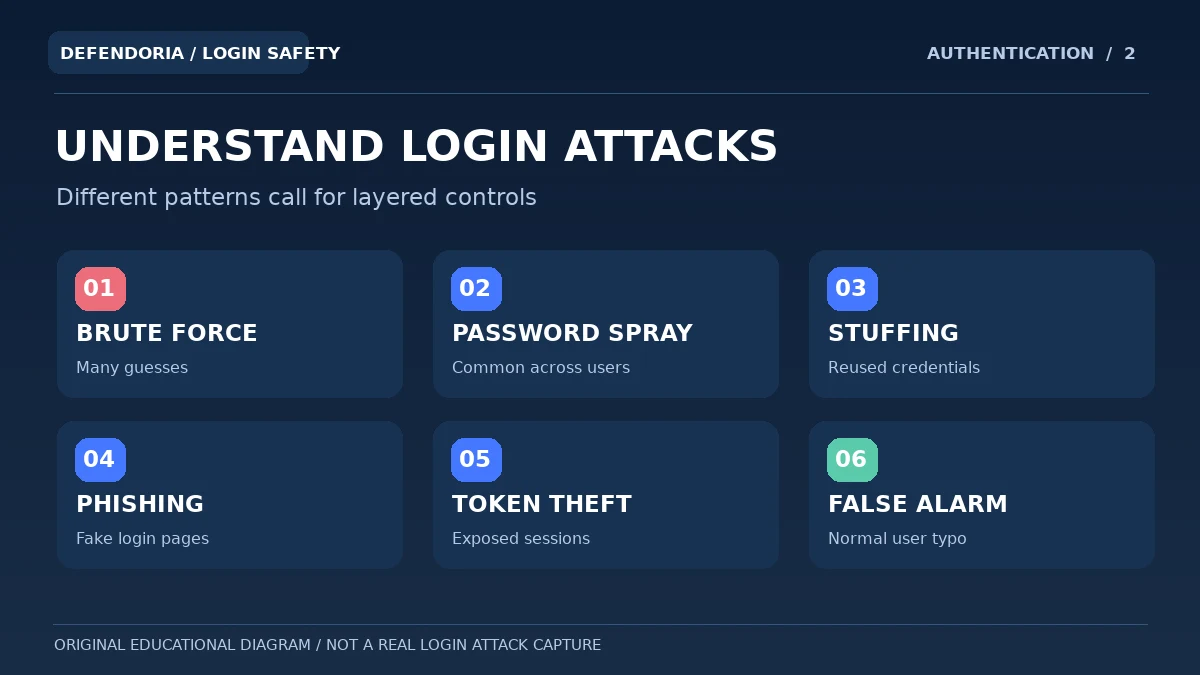
Brute force is not the only account attack worth defending against. Password spraying tries a few common passwords against many accounts to avoid per-user lockout thresholds. Credential stuffing uses usernames and passwords stolen from another service. Phishing tricks a person into providing credentials to an attacker-controlled page. These methods overlap in the security controls they require but differ in how they appear in logs and how easily a simple IP limit detects them.
How to recognize suspicious login activity without assuming a breach
1. Repeated login failures in a short interval
A large number of invalid logins may indicate automation, but it can also result from a broken service integration or a legitimate user with outdated saved credentials. Look for request patterns, timestamps and any accompanying successful logins or account changes, not the raw failure count alone.
2. Attempts against many usernames
Password spraying or enumeration may target multiple accounts using a short list of candidate passwords. Review whether the usernames correspond to real accounts and avoid displaying detailed account existence information to unauthenticated visitors.
3. Traffic from many changing IP addresses
Distributed attacks can bypass crude one-IP block lists. Use layered controls and appropriate rate limiting rather than an endless manual block list. Geographic origin by itself is not proof that an individual request is malicious.
4. Unexpected successful logins or privileged changes
A confirmed unapproved login, new administrator, altered recovery email or suspicious plugin install is more serious than ordinary failed attempts. Preserve evidence and follow an incident-response process, including account and session review, rather than relying only on login throttling.
5. CPU spikes or hosting resource warnings
Heavy traffic toward authentication endpoints can consume server resources even when passwords are never accepted. Ask the host to correlate requests, rate limits, application performance and legitimate campaign traffic before assuming the site’s slowness is caused by a compromise.
The most important WordPress login hardening controls
1. Use unique passwords and a credential manager
Long, unpredictable and non-reused credentials reduce the usefulness of ordinary guessing and credentials stolen from another service. Protect the email and hosting identities that can reset WordPress access, not just the WordPress password itself. Encourage staff to use a reputable password manager and avoid sharing one administrator login across a team.
2. Enable two-factor authentication or passkeys
MFA makes a stolen password less useful because another authentication step is required. WordPress’s official guidance recommends a reputable plugin or identity provider because core WordPress does not include 2FA by default. Where supported, WebAuthn/passkeys provide stronger phishing resistance. Keep tested recovery methods and more than one authorized authenticator for critical owners.
3. Limit repeated requests at the edge or server
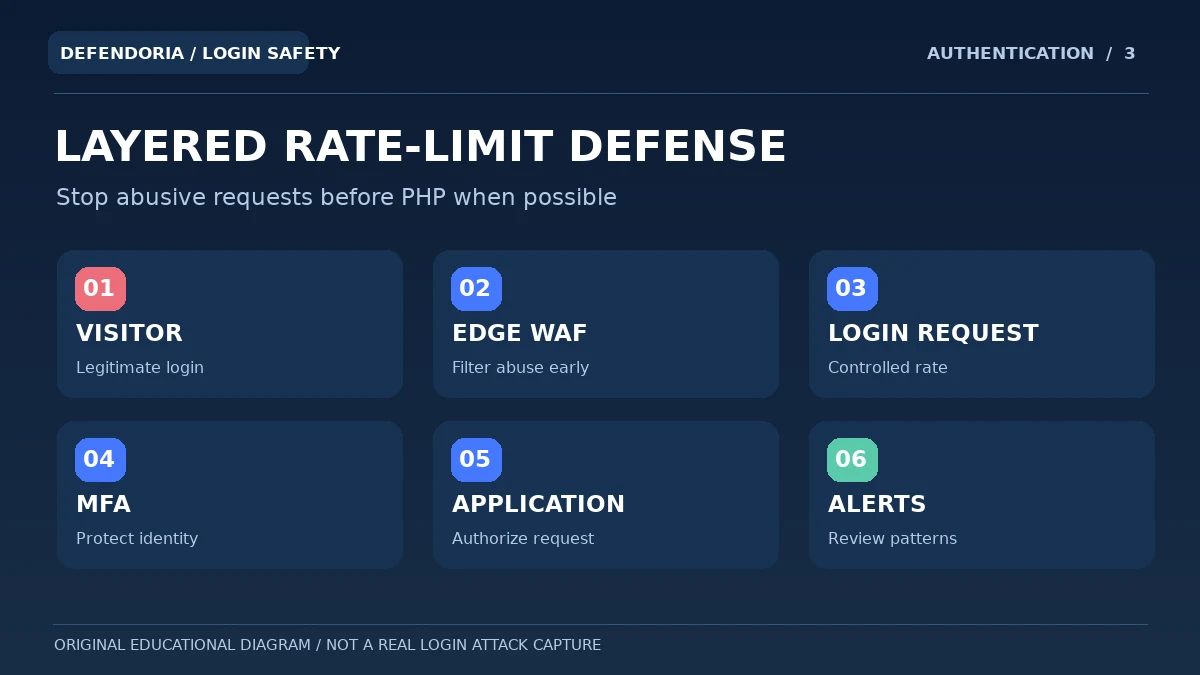
Rate limiting slows automated login attempts and can protect PHP resources when done before requests reach the application. A WAF or hosting service can challenge suspicious traffic. Application-level plugins can still help, but their code may run for requests that an edge rule could block earlier. Tune controls based on legitimate traffic and test recovery paths.
4. Add a thoughtful challenge for suspicious logins
CAPTCHA or a managed challenge can deter simple automation, but it is not a complete defense against stolen credentials or phishing. Challenges can also create accessibility problems or block legitimate users on restrictive networks. Use an approach consistent with user needs and avoid requiring a confusing challenge on every ordinary page.
5. Review XML-RPC, integrations and alternate authentication
XML-RPC can be used by legitimate clients and integrations but can also be abused by automated login attempts. Determine whether the site actually needs it before blocking the endpoint, and test integrations such as mobile publishing tools. REST API application passwords and SSO integrations also require inventory and revocation procedures; disabling one endpoint does not secure every access path.
6. Maintain updates and least-privilege accounts
Keep WordPress and its extensions supported and up to date, remove unnecessary users, and assign permissions appropriate to real responsibilities. An author usually does not need administrator capabilities. A compromised privileged account can change plugins, users and settings, so minimizing access reduces the potential damage.
7. Monitor, alert and maintain reliable recovery
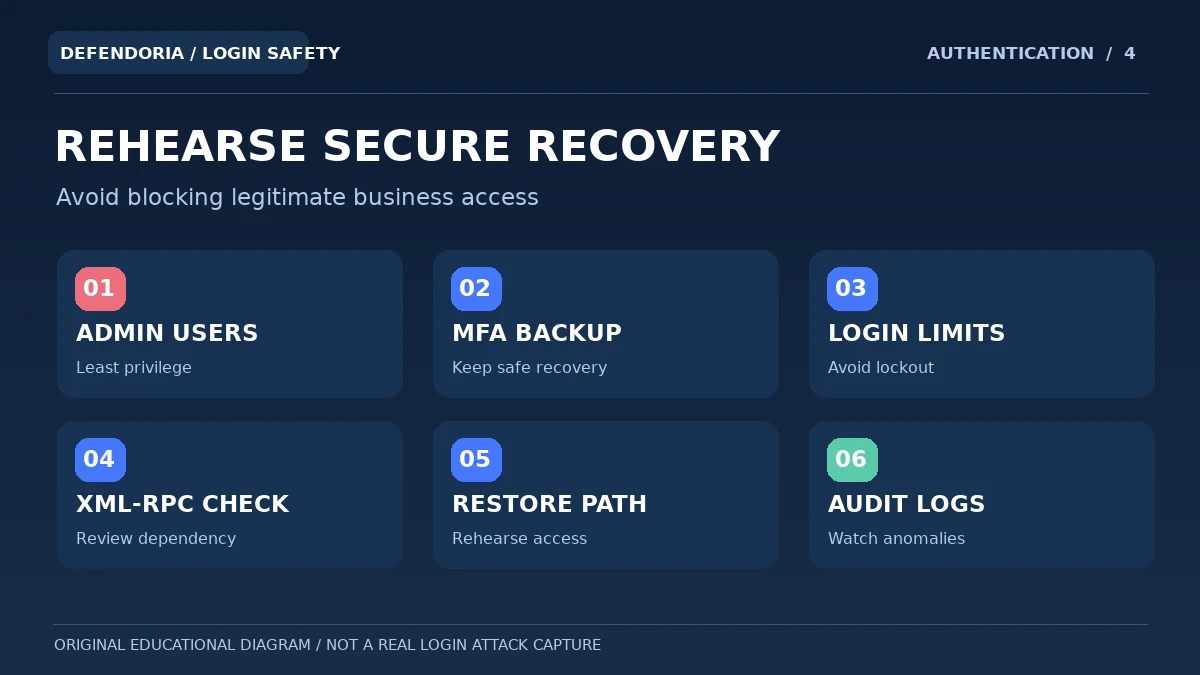
Review important login and account changes, preserve relevant logs and ensure a legitimate administrator can regain access after a lockout or lost MFA device. An emergency plan should include the hosting owner’s contact, backups and authorization boundaries. Protection is not complete if administrators cannot safely recover during an incident.
Describe your current security controls and concerns to discuss an authorized review of login protection.
Why account lockouts can backfire
OWASP warns that rigid account lockouts are not a universal brute-force defense. An attacker may deliberately trigger failed attempts against a known customer or administrator account, preventing that legitimate person from signing in. Distributed traffic may also evade simple per-IP rules while still consuming site resources. There is no magic threshold that safely fits every site; monitor legitimate login patterns and tune controls alongside other defenses.
For business-critical access, it may be better to combine edge-level rate limits, adaptive challenges, MFA and alerts. A recovery process should let verified owners regain access without lowering security for everyone. Test the chosen limits with real authentication integrations and legitimate staff needs before deploying strict blocks.
Does hiding wp-login.php solve brute-force attacks?
Changing the login URL can reduce casual bot traffic and alert noise, but it is primarily obscurity. An attacker may discover the endpoint through other site behavior, and changing it can break password recovery links, single sign-on or monitoring tools if poorly configured. WordPress’s current brute-force guidance explicitly notes that obscuring the login URL should not be your only defense.
The important question is whether credentials are hard to guess and protected with another factor, abusive requests are slowed before overwhelming the server, and unusual access is detected. An elegant custom login page without those controls may look professional while providing little additional resistance to credential attacks.
How should agencies secure many WordPress logins?
Agencies manage multiple sites, contractors and shared workflows. Using one administrator credential on several unrelated properties can make one exposure far more damaging. Maintain named accounts, least-privilege roles, access offboarding and a secure credential manager. Prefer identity integrations that support strong authentication and clear recovery ownership. Document which client controls the hosting and which party can approve emergency restrictions.
A centralized monitoring dashboard can help find suspicious login patterns, but it also becomes an important access target itself. Protect the monitoring account and its API credentials, use appropriate permissions and retain a per-client incident process. Avoid enforcing a broad login rule across every customer site without checking their forms, integrations and users.
A practical WordPress login protection checklist
- Inventory all administrator, editor and service accounts and confirm their owners.
- Create unique, strong passwords and remove shared administrator credentials.
- Enable MFA or passkeys for privileged users with safe recovery options.
- Use a reliable WAF or hosting-level rate limiting where available.
- Test that customer and administrator logins still work after new restrictions.
- Check whether XML-RPC is required by legitimate publishing integrations.
- Review application passwords, SSO and other alternate access paths.
- Preserve relevant authentication logs and alert on verified account changes.
- Maintain the website, plugins, themes and the hosting environment.
- Keep a documented, owner-approved recovery and backup process.
Frequently asked questions about brute-force attacks
What is a brute-force attack on WordPress?
It is repeated guessing of login credentials, often automated. Related techniques include password spraying across many accounts and credential stuffing using passwords obtained elsewhere. High failed-login counts do not automatically prove that the attacker succeeded.
Can WordPress block brute-force attempts automatically?
Security plugins, hosting providers and WAF services can apply rate limits, challenges and alerts. WordPress core does not include all these controls by default. Choose a maintained approach and test it with legitimate users and integrations.
Does WordPress include two-factor authentication by default?
WordPress’s official brute-force documentation states that core WordPress does not include 2FA by default. A trusted plugin or identity provider can add it. Where available, passkeys may provide strong phishing resistance, but enrollment and recovery must be managed carefully.
Are strong passwords enough to stop attacks?
Strong unique passwords are essential, but password theft, phishing, unsafe devices or vulnerable software can bypass simple guessing defenses. MFA, least privilege, monitoring and maintenance add important layers of protection.
Should I block my WordPress login page by country?
Not automatically. Geographic blocks can prevent legitimate owners or customers from signing in, and distributed attacks may use many locations. WordPress advises against relying on permanent country blocklists. Prefer carefully scoped rate limits, MFA and other controls.
Can limiting login attempts lock out real users?
Yes. OWASP explains that an attacker may deliberately trigger account lockout to deny access to a legitimate user. Use suitable throttling, edge-level controls, monitoring and an authorized recovery path rather than hard-coded aggressive lockouts.
Is xmlrpc.php always dangerous?
No. It supports some legitimate integrations and publishing tools. However, it can attract automated authentication attempts. If the site does not need it, disabling it may reduce exposure; if it is needed, restrict and rate-limit it thoughtfully.
Does changing the WordPress login URL prevent hacking?
It may reduce routine bot noise, but obscurity is not a complete security control. An attacker could still exploit vulnerable software or stolen credentials. Build protection around strong authentication, access controls and monitored rate limiting.
How can I tell whether a login attack succeeded?
Look for corroborating evidence such as unauthorized successful logins, privileged role changes, new administrators, altered plugins or content, and relevant host alerts. Do not assume that a failed-login email means the website was breached.
What should I do if an administrator was actually compromised?
Use an authorized incident-response process: protect upstream email and hosting identities, recover trusted access, revoke suspicious sessions, review administrator accounts and changes, and investigate the entry point. See our separate administrator compromise guide for detail.
Primary references and editorial transparency
This article is based on official WordPress guidance, OWASP’s analysis of account lockouts and CISA’s identity-management recommendations. The original images are conceptual diagrams rather than live security logs or a record of a customer attack. Controls should be tested and adjusted to the needs of the authorized site owner.
- WordPress Developer Handbook: Brute Force Attacks.
- WordPress Developer Handbook: Hardening WordPress.
- WordPress Developer Handbook: Logging In.
- OWASP Foundation: Blocking Brute Force Attacks.
- CISA: Identity and Access Management Recommended Practices.
- WordPress.org: Roles and Capabilities.
How to test login protection without locking out your team
Before putting strict rules on the live website, inventory legitimate ways people and services sign in. A business might use the standard WordPress form, a custom membership portal, an identity provider, a mobile publishing app or an API integration. A restriction on one endpoint can break an important workflow even while normal administrator login appears fine. Make a note of which tools use authentication and who can approve changes to them.
Test new protection in staging where available, using authorized test accounts rather than real customer credentials. Check a normal successful login, an incorrect password, the expected MFA prompt, account recovery, and the behavior of a legitimate integration. Confirm the hosting owner can reverse a bad rule if the administrator is locked out. For sites with members or customers, check accessibility and whether a challenge interferes with users relying on assistive technology.
After deployment, monitor whether expected failed-attempt noise decreases and whether legitimate users report new problems. Examine a representative sample of authentication events instead of reacting to the total count alone. If distributed traffic continues, ask your hosting or WAF provider about improved rate policies; do not merely add permanent IP or country blocks without understanding the effects.
If there is evidence of a successful unauthorized login, switch from routine hardening to incident response. Protect recovery channels, preserve relevant events, revoke compromised sessions and review what the account changed. A firewall can reduce future guessing traffic, but it cannot undo unauthorized changes that already occurred.
This is general educational guidance, not a security assessment of a specific website. Obtain authorization before any technical testing.