

Direct answer: On a self-hosted WordPress website, you can enable two-factor authentication (2FA) by selecting a maintained 2FA plugin or a trusted identity provider, enrolling each administrator’s own authenticator, verifying the generated code, securing recovery codes, and testing a fresh login before enforcing the policy for everyone. WordPress core does not provide 2FA by default. The most common mistakes are losing the only authenticator, relying on insecure fallback methods, assuming a WordPress.com guide applies to self-hosted WordPress, and leaving alternate access paths unreviewed.
A second login factor is valuable because a stolen password no longer automatically gives an attacker access to a protected account. Yet enabling a checkbox is only the beginning. The business also needs a reliable method for staff to enroll, for administrators to recover when a device is lost, and for the website to handle applications that authenticate differently from the normal login form. A poorly planned rollout can lock out the actual owner while leaving a service account or weak recovery channel untouched.
This guide explains the technical choices without assuming a particular commercial security plugin, because interfaces and supported factors vary. We distinguish self-hosted WordPress.org installations from WordPress.com accounts, use the WordPress.org Two-Factor plugin as an illustrative setup path, and explain why authenticator apps, security keys, passkeys and email codes are not interchangeable. The article is educational, not evidence that a particular customer website has been configured.
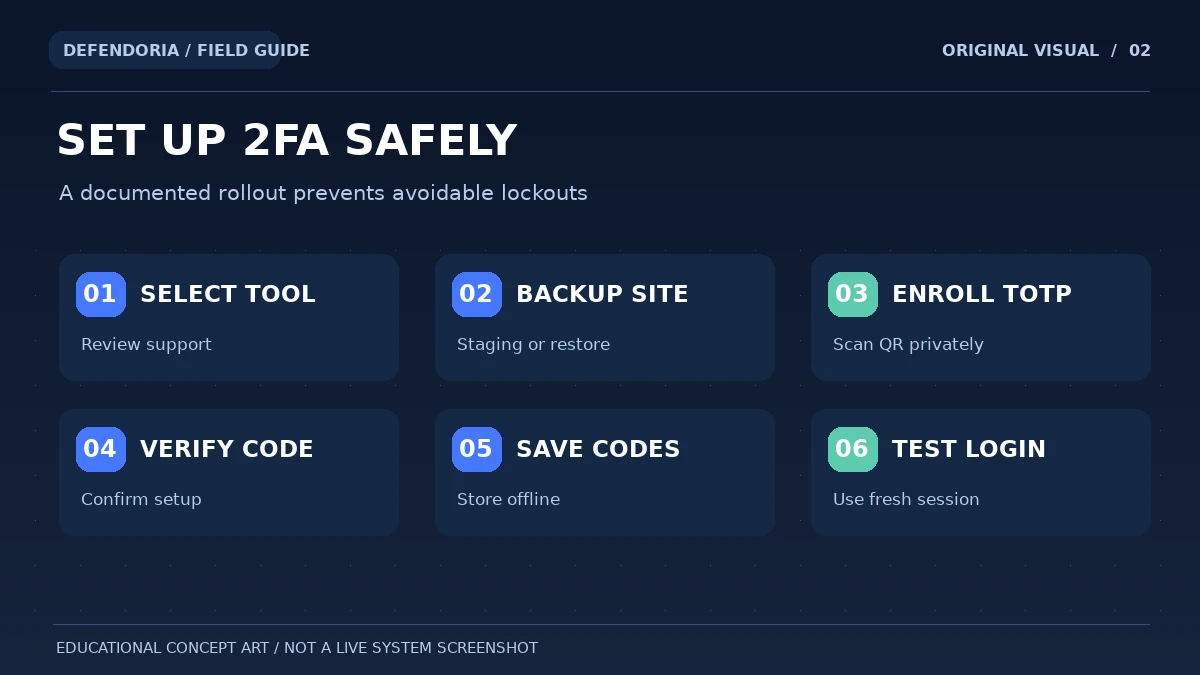
- Identify all users and authentication integrations that need protection.
- Choose a maintained plugin or identity system that supports your required factors.
- Back up the site and test enrollment in staging if available.
- Enroll each user individually and verify the first one-time code.
- Save recovery methods securely, then test a new login and a recovery scenario.
- Enforce the intended policy and monitor exceptions without blocking authorized owners.
Do not photograph QR enrollment secrets for sharing in chat or store recovery codes in a publicly accessible WordPress file.
What is two-factor authentication, and how does it work on WordPress?
Authentication factors come from different categories: something you know, such as a password; something you have, such as a security key or authenticator; and something you are, such as a biometric characteristic. Genuine multifactor authentication combines independent categories. Asking for a password and a second PIN, both knowledge factors, does not achieve the same security goal. OWASP makes this distinction explicit in its Multifactor Authentication Cheat Sheet.
In a common time-based one-time password (TOTP) setup, the user enters a normal password, then a temporary numerical code from an authenticator app. The app and server use a shared secret to calculate matching codes over time. This avoids needing an SMS message for each login but does not make the login immune to phishing or a compromised device. An attacker running a deceptive login page may try to capture and immediately reuse a code.
A FIDO2/WebAuthn security key or passkey is different: authentication uses cryptographic credentials tied to the legitimate origin, which offers stronger resistance to ordinary phishing. Depending on implementation, passkeys can be used with or without a separate password. The selected plugin, identity provider and recovery flow determine exactly how authentication is enforced.
Does WordPress include two-factor authentication by default?
For self-hosted WordPress, the official WordPress Developer Handbook says 2FA must currently be added using a plugin or identity provider; it is not shipped as a native core login feature. By contrast, a WordPress.com account has its own built-in two-step authentication settings. An owner following instructions for the wrong platform may search for a menu that does not exist or assume a site-wide policy was enabled when it was not.
The WordPress.org Two-Factor plugin is one example from the official plugin directory. Its instructions explain that individual users configure their methods through Users → Your Profile under Two-Factor Options. Available providers may include TOTP authenticator apps, email codes and backup options, depending on configuration and installed extensions. Other maintained tools expose different menus or support FIDO2 security keys, enforce roles differently, or integrate with a central identity provider.

Which WordPress 2FA method should you choose?
1. TOTP authenticator apps
Authenticator apps generate short-lived codes without depending on ordinary SMS delivery. They are widely supported and practical for many WordPress administrators. Their weakness is that a person can still be tricked into entering a code on a phishing page, and a lost device can cause lockout if no recovery path exists. Confirm the app’s secret backup and device-migration behavior before enrollment.
2. Security keys and WebAuthn passkeys
Hardware security keys and appropriately implemented passkeys can protect against many phishing attacks because the cryptographic challenge is tied to the legitimate site. They are particularly suitable for administrators with high-value access. Support varies by plugin, identity provider, browser and device, so test registration and recovery. Enrolling a second independent authenticator can reduce the impact of losing one key.
3. Email verification codes
Email codes may be convenient where the plugin supports them, but the mailbox becomes an important security boundary. If an attacker controls the mailbox that also receives password resets, the factors may not be sufficiently independent. Email delivery delays and spam filters can also interfere. Protect the email identity and understand whether this method is permitted as a fallback.
4. SMS and phone calls
SMS can offer protection against basic password guessing but carries risks from SIM swaps, phone-number changes and social engineering. OWASP recommends phishing-resistant factors or TOTP when possible. If your team must use SMS for accessibility or compatibility, document the limitations and secure the mobile carrier account as part of the plan.
5. Single-use recovery codes
Recovery codes are a safety net, not an everyday login method. Generate them through the approved plugin, store them in a secure place separate from the normal authenticator, and treat them as sensitive credentials. If an attacker obtains a recovery code, it can undermine the added protection. Regenerate or revoke codes after a suspected exposure where the system permits.
Describe your users, hosting model and current login setup to discuss an authorized security review. Do not include passwords, backup codes or QR enrollment secrets.
How to set up WordPress 2FA step by step
1. Confirm the site type and inventory your accounts
Determine whether you are protecting a WordPress.com identity, a self-hosted WordPress site, or a site using SSO. List all administrators, editors, support accounts, application passwords and integrations that access WordPress. Verify who controls the hosting login, recovery email and other upstream accounts. A policy that covers only one administrator may leave another highly privileged identity unprotected.
2. Evaluate a trusted implementation
Choose a maintained plugin from a reputable source or use a suitable existing identity provider. Review recent updates, supported WordPress and PHP versions, factor choices, recovery capability, role-based enforcement and compatibility with the actual login experience. Avoid installing an unverified plugin merely because its title contains “security.” Keep a record of which component owns the authentication policy.
3. Protect backups and the rollback route
Before changing production authentication, confirm you can restore access through an authorized host account and recover from a recent, tested backup. Use a staging environment if possible, particularly for membership, ecommerce or multisite setups. Do not deploy a rule that might lock out all administrators without first documenting a secure owner-controlled recovery path.
4. Install and configure factors for one test administrator
Following the chosen plugin’s actual guide, open the profile or authentication settings, enroll a TOTP app or supported authenticator, and verify the initial code. If it displays a QR code or secret, treat that as a credential: don’t share it in screenshots or public issue trackers. Confirm the site’s clock is correct if TOTP codes do not match, but do not disable authentication because of a clock problem.
5. Save and test recovery
When provided, download single-use backup codes and store them in a secure password manager or other protected location accessible to the authorized owner. Use a private test account or a safe test procedure to verify how recovery works. Do not consume the owner’s only recovery code merely to test it without planning how to regenerate replacements.
6. Test a genuinely new login before enforcing across roles
Sign out and use a fresh session to verify the login flow, including failed-password behavior, second-factor prompt and success. Test any custom login or SSO routes, as well as the hosting owner’s approved recovery method. Enroll a second trusted administrator or independent authenticator when appropriate before requiring 2FA for all privileged users.
7. Enforce the policy and monitor
Apply the policy to the intended user roles, communicate enrollment instructions and give staff a secure support channel. Review failed second-factor attempts, suspicious factor changes and locked-out users. Periodically confirm that no alternate authentication route has bypassed the intended requirements.
The most common WordPress 2FA mistakes
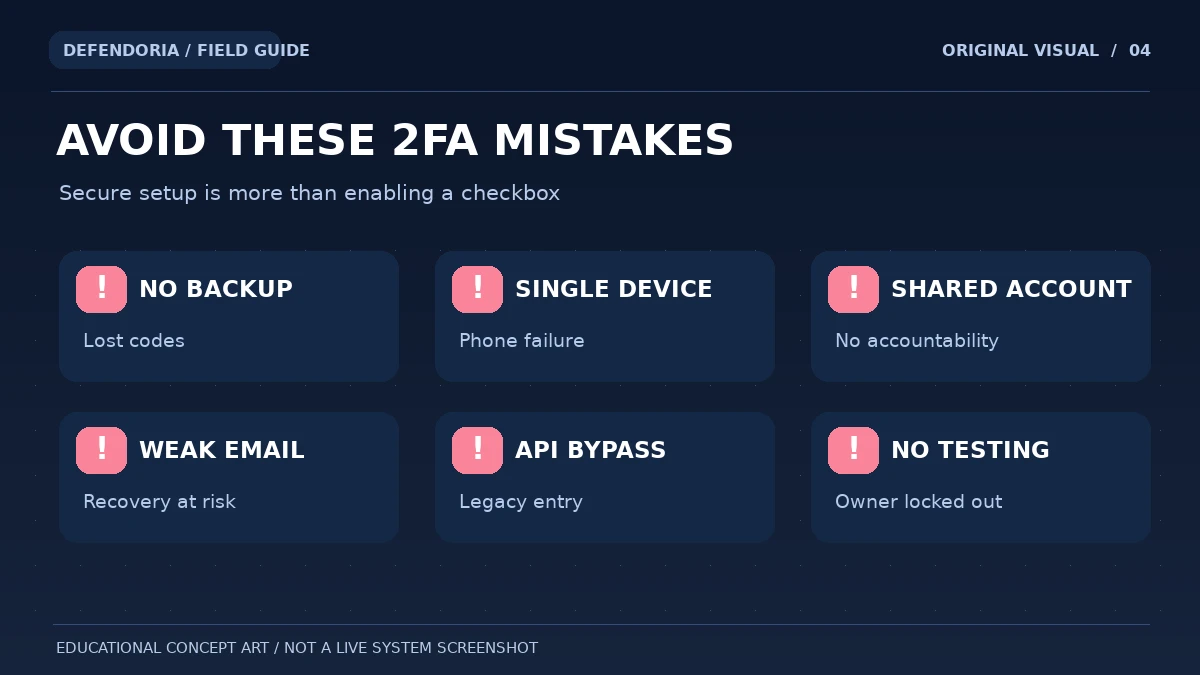
1. Turning on enforcement before anyone has enrolled
A site-wide requirement can block legitimate users if administrators enable it before staff register a supported authenticator. Roll out in stages with clear instructions and an owner who can help. Do not rely on a backdoor or an undocumented emergency bypass as the recovery plan.
2. Saving the QR code or shared secret in an unsafe place
A TOTP QR code commonly contains the shared enrollment secret. Anyone who copies it may be able to generate matching one-time codes. Treat it like a sensitive credential. Do not put it in a ticket attachment, public screenshot, group chat, or unprotected site folder. Some secure password managers support appropriate secret storage; understand the trade-offs when password and TOTP are held together.
3. Keeping no recovery codes or additional authenticator
A broken or lost phone should not permanently lock the site owner out. Plan recovery before an incident: store backup codes securely, consider a second independent factor, and document verified ownership procedures. Re-enrolling a phone later should require strong reauthentication so an attacker cannot exploit the replacement process.
4. Enabling weak fallback without understanding the risk
A strong security key protects little if the same account can easily fall back to an insecure email address or recovery question. OWASP warns that recovery and factor-reset mechanisms can become bypass paths. Review all permitted methods and secure the upstream email and account recovery channels.
5. Confusing a password plus PIN with two independent factors
Two remembered secrets are both knowledge factors. Strong MFA combines independent categories, such as a password and a possession-based authenticator. If a vendor calls a second memorized answer “two-factor,” investigate the actual design rather than assuming the label describes secure authentication.
6. Forgetting application passwords, SSO and legacy access
WordPress application passwords are intended for certain API integrations, and some plugins or hosting configurations add distinct authentication routes. A 2FA plugin may protect the browser login but not every alternate mechanism. Inventory trusted integrations and verify the security policy applies to the relevant access paths. Do not indiscriminately remove app credentials used for essential business functions without a migration plan.
7. Installing overlapping login security plugins
Multiple plugins that modify sessions, CAPTCHA, login redirects and 2FA can conflict. A person might complete MFA yet be redirected to an unrelated login page, or a security plugin could block the recovery route. Identify one clear ownership model for authentication and test other security integrations in staging.
8. Requiring SMS only for every privileged account
SMS may help against basic credential guessing but is not equally strong against phishing and number takeover. Prefer supported phishing-resistant methods where practical, or TOTP with sound recovery procedures. Accessibility, device support and team workflows matter in the method selection.
9. Never testing loss-of-device recovery
A backup code printed once and filed in an unknown desk drawer is not a recovery program. Test ownership verification, approved replacement procedures, and the ability to revoke a lost authenticator. Avoid creating a permanent bypass that attackers can easily use.
10. Treating successful 2FA enrollment as complete site security
MFA does not patch a vulnerable plugin, stop malicious hosting access, remove an already-compromised session, or protect insecure APIs automatically. Combine login protection with updates, access reviews, backups, monitoring and evidence-based response when compromise is suspected.
How to handle a lost phone or locked-out administrator
Start by confirming ownership through a channel previously trusted by the organization. If another enrolled authenticator or unused backup code is available, follow the configured plugin’s official recovery procedure. If not, contact a verified administrator or hosting provider and follow the documented access process. Do not publish an emergency reset script on the open internet or ask the affected user to email passwords or QR secrets.
When a device is replaced, revoke or retire the old factor according to the product’s controls and enroll the new one through a secure reauthentication step. OWASP recommends treating factor changes as high-risk events, not silently allowing them merely because a browser has an old session. The organization should log and notify relevant owners of suspicious authenticator additions or removals.
If an unauthorized person may have accessed the account, rotate exposed credentials using a trusted device, invalidate suspicious sessions, review recently changed recovery settings and examine what the identity could do on the website. A password change or phone replacement without investigating active sessions and affected site content may not restore full control.
How should agencies and multisite owners roll out 2FA?
An agency managing many sites needs named accounts and consistent recovery ownership. Do not allow all contractors to share one administrator credential just to simplify 2FA enrollment. Set privileges according to tasks, document how staff are offboarded, and ensure the client has a verified owner-controlled recovery route. Avoid leaving a permanent unprotected “backup admin” on each site; protected, audited emergency access is a better design.
WordPress Multisite changes capability boundaries. Super Administrators have network-wide control, while administrators of individual sites have more limited permissions. Plan strong protection for every high-impact identity and test how factor policies apply to the actual network. Hosted identity providers and managed WordPress services may have central authentication settings; coordinate rather than deploying conflicting plugins.
A before-and-after deployment checklist
- Identify the WordPress hosting model and the actual login provider.
- List active privileged accounts, integrations and recovery owners.
- Choose maintained 2FA software or a supported central identity provider.
- Check TOTP, WebAuthn/passkey, SMS or email options and their security trade-offs.
- Preserve tested backups and a documented authorized rollback method.
- Enroll each user individually and protect QR enrollment secrets.
- Create secure single-use recovery codes or a second trusted authenticator.
- Test a fresh successful login, failed login and legitimate recovery flow.
- Check application passwords and alternate access routes for policy gaps.
- Monitor unexpected factor resets, failed second-factor attempts and lockouts.
Frequently asked questions about WordPress two-factor authentication
Does WordPress have built-in 2FA?
Self-hosted WordPress core does not provide 2FA by default, according to the WordPress Developer Handbook. Add it using a maintained plugin or identity provider. WordPress.com accounts have their own two-step authentication settings, so the correct instructions depend on where your site and account are hosted.
How do I enable an authenticator app on WordPress?
Install and configure a trusted 2FA integration, then follow its profile or account enrollment instructions. The WordPress.org Two-Factor plugin provides an example under Users → Your Profile. Scan the enrollment code privately, verify the generated time-based code and protect backup codes before testing a fresh login.
Is Google Authenticator the only option?
No. Many reputable authenticator apps support time-based one-time passwords, and some WordPress integrations support security keys or passkeys. Select based on compatibility, phishing resistance, device management, backups and the organization’s recovery needs rather than a single brand name.
Are passkeys better than six-digit authenticator codes?
Properly implemented WebAuthn/FIDO2 credentials provide stronger protection against phishing because authentication is bound to the legitimate origin. TOTP still adds useful protection against password guessing. Device support, enrollment and recovery must all be tested before choosing a method.
What if I lose my phone after enabling 2FA?
Use an enrolled backup authenticator or unused recovery code if available, following the plugin’s official process. Otherwise contact a verified site owner or hosting administrator for authorized recovery. Do not disable security or use unknown scripts without proper ownership and rollback controls.
Can hackers bypass WordPress 2FA?
MFA substantially reduces some account takeover risks, but attackers may exploit phishing, weak recovery, stolen sessions, vulnerable plugins or authentication endpoints that do not enforce the same policy. Review the entire access path, not just the standard login form.
Should every WordPress user need a second factor?
Protect administrators and other privileged identities at minimum. Other roles may also warrant it depending on what information and capabilities they hold. A membership or customer site needs a practical rollout and recovery plan so users are not needlessly locked out.
Are email codes safe enough for 2FA?
Their effectiveness depends on the email account’s security and whether the factors are genuinely independent. If the same mailbox can reset the password and receive the second code, its compromise can undermine both steps. Prefer stronger supported methods for high-value accounts.
Will 2FA stop WordPress brute-force traffic?
It makes password-only account compromise harder but does not necessarily stop automated requests or their server load. Combine 2FA with sensible edge or hosting-level rate limits, supported software and monitoring. Avoid aggressive account lockouts that can block legitimate administrators.
Will a 2FA plugin secure WordPress application passwords?
Not necessarily. Application passwords and other API integrations may follow different authentication flows. Inventory the access paths, use least privilege and revocation, and verify how the chosen security product handles them. Do not assume browser MFA automatically applies to every integration.
Primary references and editorial disclosure
This guide uses WordPress’s official documentation, the WordPress.org Two-Factor plugin listing and the OWASP MFA guidance. Plugin settings change with software versions and other security integrations, so verify the installed tool’s current instructions. The four original graphics are explanatory illustrations, not screenshots of a customer’s configuration or proof that Defendoria installed 2FA on a specific site.
- WordPress Developer Handbook: Brute Force Attacks and 2FA.
- WordPress.org Plugin Directory: Two-Factor.
- WordPress.com: Enable Two-Step Authentication (WordPress.com accounts).
- OWASP: Multifactor Authentication Cheat Sheet.
- OWASP: Passkey Security Cheat Sheet.
- WordPress Developer Handbook: Hardening WordPress.
- WordPress Developer Handbook: Application Passwords.
This is general educational guidance, not a security assessment of a specific website. Obtain authorization before any technical testing.