
Quick answer: Before installing a WooCommerce plugin, verify its publisher and download source, review its maintenance and security history, check the exact version against known vulnerability advisories, confirm compatibility with your WordPress and WooCommerce setup, and test it on staging with a usable backup. A high rating, many installations or a marketplace listing can be helpful context, but none proves that an extension is secure. If the plugin handles payments, customer records, privileged access or checkout scripts, apply stricter scrutiny.
Extensions make WooCommerce flexible. They can also add executable PHP, JavaScript, database changes, background jobs, third-party API connections and new user permissions. That means installing a plugin is a software supply-chain decision, not simply choosing a new visual feature. This guide gives store owners a practical review process that separates known evidence from assumptions and avoids promising that any tool can certify a plugin as completely safe.
First ask whether you need another plugin
Every additional extension introduces another component to maintain, update, monitor and troubleshoot. Before downloading anything, write down the business problem. Is the goal a new shipping rule, a subscription workflow, a product option, a marketing integration or a payment feature? Check whether current WooCommerce settings, an existing licensed extension or a simpler operational process already solves it. Duplicating functionality can create conflicting hooks and confusing ownership.
Compare the consequences of adding code with the consequences of not adding it. A cosmetic enhancement may be easy to postpone; a required tax or accessibility feature may have a stronger business case. If two plugins provide the same capability, prefer the one with the clearer maintenance path and smaller data-access footprint, not automatically the one with the longest feature list. Document why the extension is necessary so the decision can be revisited later.
Confirm the publisher and the authentic download location
Start with the official WordPress Plugin Directory, the WooCommerce marketplace, or a vendor’s verified official site. Check the publisher name, domain, support channel, documentation, license terms and update mechanism. Search for the exact product name and plugin slug; lookalike names and repackaged archives can cause confusion. Do not install a ZIP from an unsolicited email, an unverified mirror or a website promising a “nulled” premium version.
For paid extensions, confirm how license activation, security updates and support are delivered. Some subscriptions must be connected to receive updates; an installed extension that no longer receives fixes may become a long-term risk. WooCommerce’s subscription guidance explains that update eligibility and support depend on activation for relevant marketplace products. Keep purchase and license ownership under the business’s control rather than a freelancer’s personal account.
A legitimate publisher can still ship a vulnerable release, and a new developer can write good code. Identity checks are a first filter, not a substitute for technical review. If you cannot establish where an archive came from, stop and obtain a trusted copy before proceeding.

Read the plugin’s maintenance record carefully
On the WordPress directory page, review the last updated date, version history, changelog, support activity, declared minimum WordPress and PHP versions, and the “tested up to” information. WordPress’s Manage Plugins documentation explains how to view compatibility details and updates from the dashboard. Treat these fields as useful signals, not proof. A plugin updated yesterday could still have a serious flaw; a mature, stable plugin might have a legitimate reason for fewer feature releases.
Look for signs of a responsive maintainer: security fixes, meaningful release notes, clear migration guidance and reasonable support responses. Check whether reported issues are acknowledged and resolved, not merely whether a public forum contains complaints. Many users contact support only when something goes wrong, so raw complaint counts are a poor quality metric. Conversely, a support forum full of unresolved compatibility problems deserves investigation.
WooCommerce’s extension maintainability guidance emphasizes regular updates, compatibility checks and vulnerability monitoring. That is developer guidance rather than a universal promise about any individual plugin. For a mission-critical store, ask the vendor how quickly security fixes are communicated and whether older supported versions receive patches.
Tell us about your website and the security concerns you want to address.
Talk to Defendoria ↗Check known vulnerabilities using the exact plugin slug and version
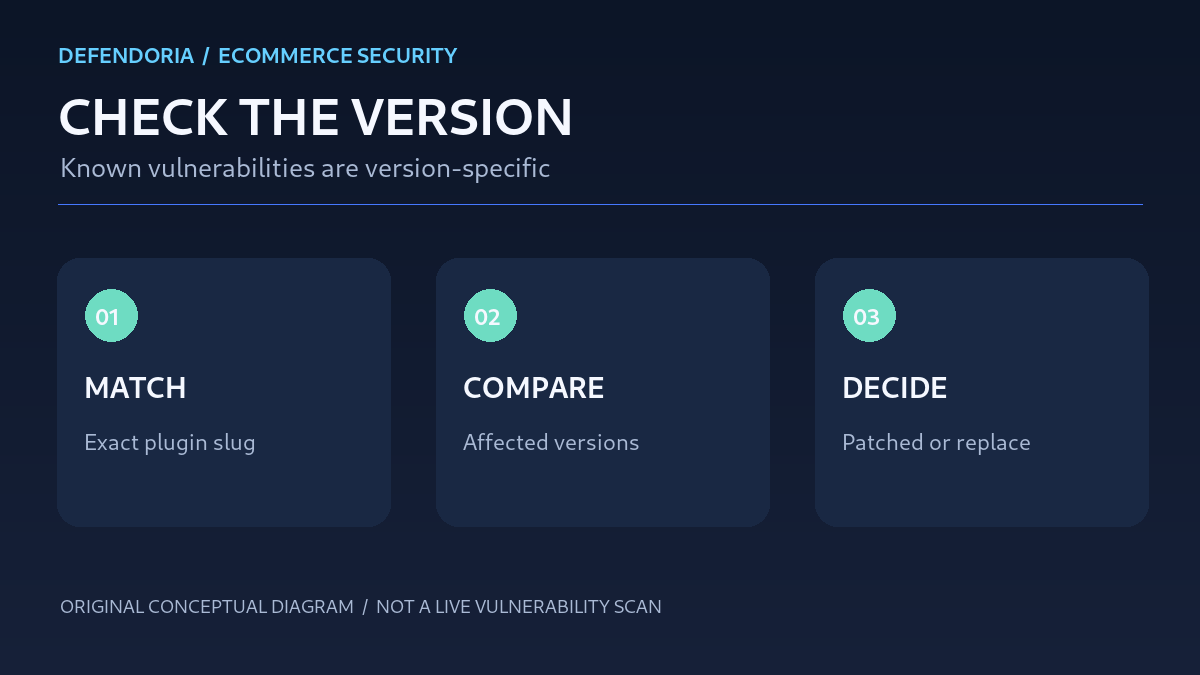
Do not search only for a product’s marketing name. Identify its WordPress plugin slug, vendor and exact version, then look for security advisories from the publisher, the Wordfence vulnerability database, recognized CVE records and other credible research. When a report names affected versions, compare those ranges with the release you intend to install. An advisory affecting versions up to a specific release does not necessarily mean the latest release remains vulnerable; likewise, an older fixed advisory does not establish that every newer version is free of other flaws.
Read the actual impact and prerequisites. Some vulnerabilities require an authenticated Administrator, some require a lower-privilege account, and others may be reachable without login. The difference matters for prioritization. Consider whether a patch exists, whether there is evidence of exploitation, whether your store exposes the vulnerable feature and what data or operations it could affect. Avoid assuming a published vulnerability means your particular store was compromised.
CISA’s Known Exploited Vulnerabilities catalog can help identify vulnerabilities with documented exploitation, although absence from the catalog is not evidence of safety. Some plugin vulnerabilities are not assigned CVE identifiers or are disclosed later. Check multiple credible sources, especially when a vendor’s own notice is incomplete. Record the date of your review because security information can change after installation.
Interpret security scores and popularity without overconfidence
Ratings and installation counts can tell you whether other users have tried a plugin and whether it has an established user base. They do not show whether the code properly checks permissions, escapes output or protects sensitive information. A popular extension may attract more researcher attention, but that does not make it inherently more or less secure than a smaller product. A five-star review often describes convenience or support, not a code audit.
Security scanners also have limits. A clean result may mean no known issue matched the scanned version; it cannot prove the absence of unknown vulnerabilities, malicious update infrastructure or risky custom integrations. A vulnerability report may be a false positive or apply only to a different edition of the plugin. Validate names, versions and evidence before making a disruptive decision. For a deeper explanation of scan limitations, see Defendoria’s guide to free website security scanners.
Confirm compatibility with your actual store
Compatibility is more than whether the “Activate” button works. Check the declared WordPress, WooCommerce and PHP requirements against your production environment. Review support for High-Performance Order Storage (HPOS), Cart and Checkout blocks, the current product editor and any relevant subscriptions, multilingual, tax or shipping systems. The WooCommerce compatibility guidance recommends testing extensions with the core platform and commonly used components.
For example, a checkout enhancement may appear fine on a product page yet fail with a block-based checkout. An order export tool may assume legacy order storage and mishandle stores using HPOS. A discount extension may conflict with a subscription renewal or a shipping calculation. None of those outcomes necessarily means the extension is malicious; operational incompatibility is a separate risk that can still harm customers and revenue.
Ask whether the vendor explicitly supports your payment gateway and checkout architecture. If a plugin requires changing how card data is collected or transmitted, involve the payment provider and an appropriately qualified security reviewer before proceeding. Do not install a third-party script that captures payment details simply because it promises a faster checkout. Review data flows and privacy obligations first.
Examine permissions, data collection and external connections
Determine what information the plugin needs. A shipping-label integration may require order addresses and fulfillment details. A product badge plugin generally should not need broad customer exports or access to payment settings. Read the vendor’s documentation and privacy terms to identify external services, data transfers, retention periods and access controls. Check whether an API key can be scoped to the minimum necessary permissions and whether it can be revoked independently.
Extensions may introduce new administrator pages, REST endpoints, scheduled tasks, database tables or roles. If the plugin creates privileged accounts or requests access to sensitive settings, demand a clear explanation. Where source code is available, a qualified reviewer can look for capability checks, nonce handling, input validation, output escaping and safe database queries. WooCommerce’s security best practices discuss common weaknesses including injection and missing safeguards.
Do not assume an extension is safe just because it has no obvious permissions prompt. WordPress plugins run within the application and can have substantial server-side access depending on their code and environment. Unlike a mobile app permission dialog, installation does not reliably enumerate every action a plugin can take. This is why publisher trust, maintenance and code quality matter.
Use a staging environment that mirrors production
Make a recent restorable backup of the site’s database and files before testing. Staging should reflect the relevant PHP, WordPress, WooCommerce, theme, gateway, tax, shipping and extension configuration. Where possible, anonymize customer data and use payment-provider sandbox credentials so tests do not expose personal information or create real charges. Do not copy production payment secrets into an unsecured test site.
Install the plugin from the verified source on staging. Activate it and inspect logs for PHP warnings, fatal errors, unexpected network calls or new administrator roles. Walk through the workflows it affects: product display, cart totals, checkout, test payment authorization, order creation, refunds if applicable, shipping, emails and mobile layouts. Test with a customer account and the relevant staff role, not only as Administrator. Verify that the plugin does not break cache behavior or create unexpected public endpoints.
WooCommerce’s update guidance recommends testing the full store workflow on staging before making live changes. Apply the same discipline to new extensions. If staging differs substantially from production, document the gaps and increase caution. A passing staging test reduces deployment risk; it does not eliminate it.

Plan a reversible production release
Choose a maintenance window appropriate to your traffic and order volume. Record the plugin version, configuration and dependency changes. Ensure the backup can actually be restored and that the team knows who will decide to roll back. If the plugin changes the database, investigate whether simply deactivating it is enough to reverse those changes. Some extensions migrate order metadata or create custom tables that require a more careful recovery plan.
After deployment, run a small set of real-world checks with authorized test transactions or payment-provider test modes where possible. Monitor checkout errors, order creation, payment callbacks, web server logs and customer support reports. Have a defined rollback trigger, such as a measurable rise in failed checkout attempts or confirmed incorrect totals. Do not leave a failing payment integration active while waiting for a vendor to answer an email.
Keep the license and update channel connected, and assign responsibility for future security advisories. The work does not end when installation succeeds. If the plugin becomes abandoned or incompatible, plan replacement before it becomes a critical dependency.
Red flags that justify pausing installation
Pause if the only download is a pirated or modified archive; the publisher cannot be verified; the vendor will not explain how updates are delivered; a serious relevant vulnerability has no fix or credible mitigation; the plugin requires unnecessary access to sensitive customer or payment information; or staging reveals unexplained account creation, hidden external calls or checkout failures. An unsupported plugin is not automatically malicious, but the lack of a maintenance path can make its risk unacceptable for a revenue-generating store.
Be cautious about urgency claims such as “install immediately or lose your payment gateway” in unsolicited messages. Verify announcements through the official vendor website or authenticated dashboard. If you suspect a fraudulent update notice, do not click its attachment or provide WordPress credentials. Compare the request against the actual plugin version and publisher’s advisory.
What to do when a plugin has a known security issue
First identify whether the affected plugin and version are actually present. Check the advisory’s prerequisites, impact, affected range and fixed version. If a safe patch is available, prioritize updating with appropriate backup and staging safeguards, particularly when exploitation is documented or the vulnerable feature is internet-accessible. If no patch exists, consider disabling the feature, restricting access, applying a vendor-approved mitigation or replacing the extension. The right action depends on business impact and the specific vulnerability.
Do not assume installing a web application firewall cures a vulnerable plugin. A WAF may reduce exposure to some attack patterns, but it cannot guarantee protection against all exploitation paths or misuse of legitimate privileges. If there are signs of compromise, preserve evidence and investigate before wiping files or restoring backups. Defendoria’s WordPress plugin vulnerability checking guide and security update prioritization guide explain related decisions.
How to compare two extensions for the same feature
Build a simple comparison record. Include each product’s official source, developer identity, required permissions, data destinations, supported WooCommerce features, maintenance cadence, known advisories, support process, update licensing and staging results. Give greater weight to factors that affect your store’s actual risk. For a payment-related extension, secure data handling and gateway compatibility matter more than decorative features. For a warehouse tool, fulfillment accuracy and scoped access may dominate.
A useful decision can be “neither.” If both options have unresolved critical issues or break checkout, postpone the feature, use a safer built-in workflow or commission a reviewed implementation. Document any accepted risk, its owner and a review date. Avoid presenting an arbitrary numerical “security score” as objective truth unless its methodology and limitations are clearly explained.
Keep a plugin inventory after installation
Maintain a list of installed plugins, versions, vendors, owners, license expiry dates, data access and update channels. Review inactive plugins too; deactivated software can still leave files and data on the server. Remove unused extensions through the supported uninstall process after confirming their data and integrations are no longer needed. Keep backup retention and deletion practices aligned with your business and legal obligations.
Monitor vendor advisories, the WordPress dashboard and credible vulnerability sources. Decide who may approve urgent security updates and who will test checkout afterward. If an extension is essential but poorly maintained, plan an exit path before a major WooCommerce upgrade forces an emergency migration. Good software hygiene is a repeatable process, not a one-time scan.
A practical pre-installation checklist
- Write down the business requirement and confirm an existing feature cannot meet it.
- Verify the publisher, plugin slug, official download source and license ownership.
- Review changelog, support history, update channel and compatibility declarations.
- Search credible advisories for the exact product and version; evaluate patch status.
- Review data access, permissions, external services and payment implications.
- Take a restorable backup and create a representative staging environment.
- Test checkout, orders, customer access, mobile layouts and affected integrations.
- Plan deployment, monitoring, rollback and ongoing ownership before going live.
Frequently asked questions
Are all plugins in the WordPress directory safe?
No directory listing can guarantee the absence of vulnerabilities. The directory provides an established distribution and disclosure ecosystem, but you should still review the plugin’s exact version, maintenance, advisories and compatibility with your store.
Is a paid WooCommerce plugin more secure than a free one?
Price is not a reliable security measure. Evaluate publisher practices, update delivery, code quality, documented support and vulnerability response. Paid licensing can provide a support channel, but an expired license may also interrupt updates.
Does a high rating mean the plugin has passed a security audit?
No. Ratings usually reflect user experience and features. A review score does not establish that the code has been independently audited or that every release is free from vulnerabilities.
What does “tested up to” mean?
It indicates a compatibility claim recorded by the developer for a WordPress version. It is not a security certification, and it does not necessarily cover every WooCommerce feature, PHP version or combination of extensions.
Can I install a plugin directly on a live store if it is popular?
Popularity does not eliminate compatibility or operational risks. For a revenue-generating store, use staging, a restorable backup and a defined rollback plan. Direct live installation may disrupt checkout or orders even when the plugin itself is legitimate.
What if a vulnerability database shows no results?
That means the source did not return a matching known advisory at the time of your search. It does not prove the plugin is safe. Confirm the slug and version, search additional credible sources and evaluate the publisher and code quality.
Should I remove an extension immediately after seeing a vulnerability alert?
First confirm the exact affected version and impact. If exploitation is active or the flaw is severe, urgent containment may be appropriate. But deleting a plugin without understanding dependencies can break payments or erase operational data. Follow the advisory, preserve evidence if compromise is suspected, and use a tested remediation plan.
Next step: assess the risk before adding more code
A good plugin decision balances functionality, maintainability, data protection and the reliability of your checkout. When a store relies on many extensions, a structured WooCommerce security review can identify outdated components, high-risk integrations and permission problems. Defendoria also provides information about website security audits. For an authorized assessment, contact Defendoria with the plugin name and version, but do not send passwords, payment details or customer exports through a contact form.
Primary references:WordPress Manage Plugins; WordPress Security; WooCommerce Compatibility; WooCommerce Extension Maintenance; WooCommerce Security Best Practices; WooCommerce Update Guidance; Wordfence Vulnerability Database; CISA Known Exploited Vulnerabilities.
This is general educational guidance, not a security assessment of a specific website. Obtain authorization before any technical testing.