
Quick answer: To remove malware from WordPress safely, protect visitors, preserve a snapshot and relevant logs, determine how the compromise occurred, remove unauthorized files and content using trusted references, secure exposed accounts, restore from verified sources when appropriate, and test the website before reopening. Do not simply delete every scanner-flagged file or restore an old backup without fixing the original entry point.
A hacked WordPress website might redirect visitors, serve suspicious downloads, generate spam pages, display an unexpected administrator account, or show warnings in Google Search. Those symptoms do not all come from the same cause. A vulnerable plugin, stolen hosting credentials, malicious theme modification, compromised email account, or external script can each lead to a different recovery plan. The safest plan depends on the evidence and on which systems your team is authorized to manage.
This guide explains a complete response at the level a website owner or agency manager can use to supervise the work responsibly. Technical administrators can follow the investigation principles with suitable backups and staging environments, but the article deliberately avoids generic delete commands that could remove the wrong file, leak sensitive information, or make a real incident harder to investigate. If customer payment information may be affected, or you cannot establish what was compromised, involve qualified incident-response help.
- Contain any ongoing harm to visitors.
- Preserve evidence and working recovery options.
- Investigate the scope and likely entry point.
- Remove confirmed malicious changes and secure access.
- Restore trusted website components and data.
- Verify essential functions and monitor for recurrence.
These are planning phases, not a promise that the site can be cleaned in a particular number of minutes.
How do I know the website really contains malware?
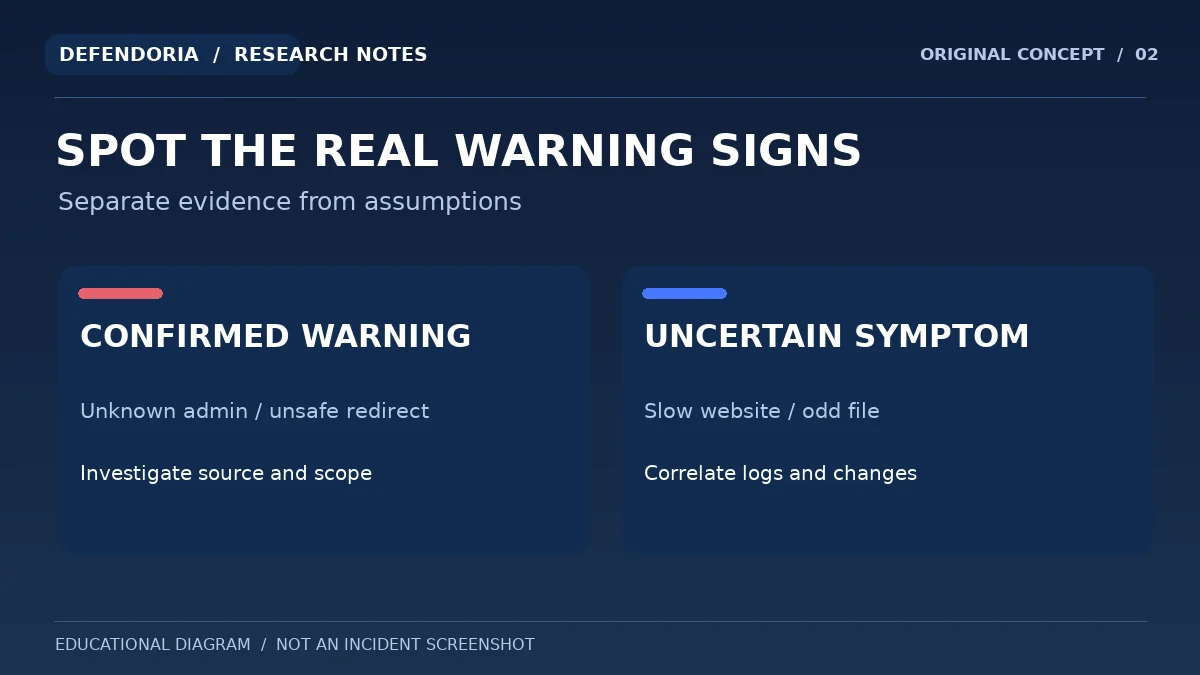
Before altering a production site, distinguish a suspected incident from a confirmed one. Strong warning signs include unauthorized administrator accounts, browser warnings about harmful content, spam pages that your team never created, unexpected redirections to suspicious domains, and verified changes to executable files that have no legitimate explanation. Some findings need interpretation: a slow page, an unfamiliar filename, or a temporary HTTP error can also result from normal maintenance, traffic, or hosting issues.
Google Search Console’s Security Issues report can provide sample URLs associated with hacked content, malware, phishing, or harmful downloads. Your host may also provide security alerts and access logs. WordPress’s official hacked-site documentation recommends documenting the symptoms and timeline first, and it emphasizes that no single type of scanner covers every possible problem. A result from a remote scanner is useful but does not reveal everything about server-level access, database changes, or third-party scripts.
For example, imagine a store owner says the homepage sometimes sends mobile visitors to gambling pages. A redirect plugin might be misconfigured, or an attacker might have injected conditional navigation. The evidence should include the affected URL, destination, referrer or device context, time, recent marketing changes, and available hosting logs. Deleting an unfamiliar file based on a guess could break the site while the actual redirect remains active.
Phase 1: Contain the incident without destroying evidence
Containment means limiting ongoing harm while preserving the ability to investigate. If the site is actively serving malicious downloads, redirecting customers to phishing pages, or exposing a suspicious checkout flow, talk to the authorized website owner and hosting team about a temporary maintenance page, removal of the affected feature, or other appropriate restrictions. Customers should not have to continue encountering unsafe pages while the team debates whose plugin is responsible.
Containment must match the severity. An unexplained server load spike by itself usually calls for diagnostics rather than a sudden shutdown. A payment page altered without authorization may require rapid coordination with the payment provider and relevant data-protection or incident contacts. Document each decision, its owner, and the time it was made so the response remains clear.
Who should be involved in the first decisions?
At minimum, identify the person who owns the website, the hosting administrator, the WordPress maintainer, and the point of contact for business operations. If the site uses an ecommerce payment service, include the appropriate provider contact when checkout security could be at risk. A domain registrar or CDN administrator may need to assist if evidence points to changes outside WordPress. Ask everyone to keep a consistent incident record instead of making undocumented changes independently.
Avoid emailing passwords or sharing full backup archives with unverified parties. Secure access arrangements, named authorization, and least-privilege access are essential during incident response, especially when an unfamiliar consultant is offered emergency credentials.
Phase 2: Preserve a useful snapshot and confirm your backup options
WordPress relies on both files and database content. Important files can include theme and plugin code, uploads, configuration, and server-specific rules; database records contain posts, settings, accounts, and often plugin configuration. A backup of uploads alone is not a full recovery plan, and a database copy without compatible files may not recreate the intended site. WordPress’s official backup guidance recommends backing up all relevant WordPress files and paying particular attention to the wp-content directory and important configuration.
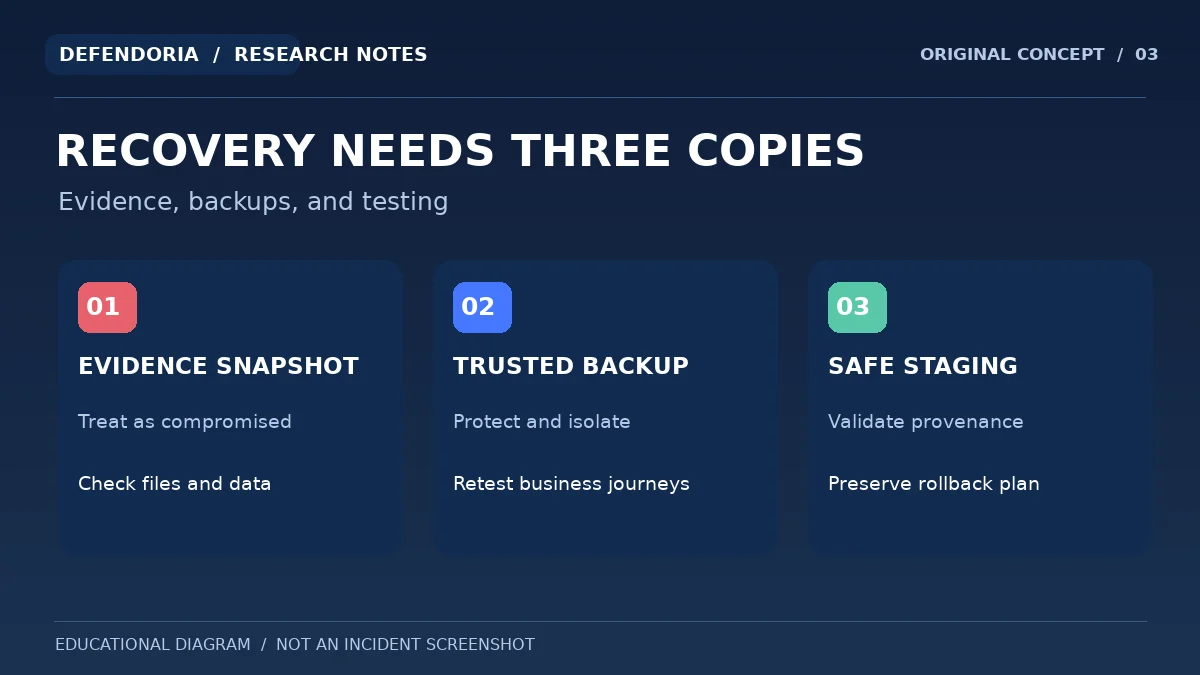
If an incident is suspected, preserve the current state where feasible before broad cleanup. Mark this snapshot as potentially compromised; it is an investigation aid, not a trusted recovery image. Keep it protected from public access and restrict who can inspect it. Preserve available web-server logs, WordPress audit events, update history, and the list of known symptoms. Logs can rotate quickly, so ask hosting support early what data can be retained.
Is a recent backup definitely safe to restore?
No. A backup made after the original intrusion may contain the same malicious code. Even an older backup can restore vulnerable software or configurations that allowed access. Check backup dates, storage integrity, the earliest signs of compromise, and whether a controlled test restore works. You may need one copy for evidence, a separate known-good recovery source, and a staging environment for validation.
Do not experiment with potentially infected archives on a public URL. If evidence is needed for an investigation, preserve access controls and a record of who handled the material. If the site contains sensitive customer or payment information, backup handling should follow the relevant organizational and legal requirements.
Describe the symptoms and affected systems to discuss authorized assistance. Sending an inquiry does not start an automated scan.
Phase 3: Determine the affected systems and likely entry point
Finding malware requires an assessment of what changed, how those changes appeared, and whether the attacker retains access. The response team should begin with an inventory of the environment: WordPress version, installed plugins and themes, hosting stack, administrator accounts, external integrations, recent deployments, and access to logs. The evidence should determine the order of investigation. A redirect in the CDN needs different checks from unauthorized edits to a WordPress post.
1. Review unexpected accounts and privileges
Compare the WordPress Users screen and any available security logs with an approved list of employees, contractors, agency accounts and integrations. Look for newly created privileged accounts, altered recovery email addresses, and role changes no one approved. Do not delete an account before recording necessary evidence, and extend the review to hosting, registrar and connected email access when justified.
2. Compare core files with trusted release checksums
The official WP-CLI tool can compare WordPress core files against WordPress.org checksums for the installed version. The read-only command wp core verify-checksums is one possible aid for qualified administrators. A mismatch may reflect an unexpected modification, a different locale or version, or legitimate custom changes; it is an investigative signal, not automatic proof of malware.
3. Check plugins and themes with their true provenance
Inventory plugin versions, approved sources and supported update paths. WordPress.org-hosted plugins may support checksum verification, while custom and commercial plugins can lack WordPress.org checksum data. Missing checksums or files with unusual names are not necessarily evidence of compromise. Compare suspected changes with vendor releases and source-control history.
4. Investigate files, server rules and scheduled jobs
Review suspicious changes in executable directories, relevant upload areas, server configuration and scheduled tasks. Some persistence mechanisms operate outside the WordPress dashboard. A trusted host may be able to review access logs, file ownership and modified timestamps. Do not run arbitrary code found in a suspicious file to see what it does.
5. Inspect database-driven content and external scripts
Unauthorized redirects and spam links may be stored in posts, widgets, site options, third-party tag managers, or injected scripts. Check legitimate changes and expected integrations first. Avoid blindly deleting database rows or making unrestricted replacements that may corrupt serialized WordPress settings.
6. Consider workstation and credential exposure
WordPress’s hacked-site guidance also recommends considering whether the administrative computer is infected. If a workstation or email account exposed credentials, cleaning the WordPress files without addressing that access path may allow immediate reinfection. Use trusted devices and official recovery channels.
Which malware removal tools are appropriate?
A remote web scanner, a WordPress security plugin, a file-integrity comparison, and a hosting-level investigation each answer different questions. Remote scanners generally observe publicly reachable content and responses. Application-level tools can inspect WordPress files and settings according to their permissions. Hosting support can sometimes see server-level activity unavailable to WordPress. No single clean result proves that every entry point or persistence mechanism is gone.
The best use of a tool is to produce a hypothesis that an authorized person verifies. Check the scan scope and its limitations, preserve the report, and compare flagged files against trusted sources. If you see a “critical” alert but no supporting evidence, investigate before deleting code. Equally, a negative scan does not dismiss a confirmed unauthorized administrator or suspicious browser warning.
Phase 4: Remove confirmed malware and close the access path
The remediation phase is where uncontrolled shortcuts become especially risky. Removing a script that produces an unauthorized redirect may stop the visible symptom but leave the attacker’s privileged account or vulnerable extension in place. Conversely, deleting an unfamiliar PHP file without verifying ownership could disable a business-critical feature. The response team should have a documented reason for each change and a rollback plan in case legitimate functionality is affected.
Repair or replace affected components from trusted sources
Once a file or component is confirmed altered, use a trusted copy from the official vendor, a verified repository, or an appropriate recovery backup when possible. Identify the exact required version and check compatibility before deployment. A clean rebuild of affected WordPress components is sometimes safer than piecemeal editing, but custom themes, integrations and uploaded content need careful handling. Never source core WordPress files from an unknown mirror or run a mysterious cleanup script from an unsolicited email.
If evidence points to an unsafe theme or plugin, consider temporarily disabling the affected functionality through an authorized process, patching to a maintained version, or replacing the component. Updating everything indiscriminately during active recovery can complicate evidence comparison and introduce unrelated problems; plan changes based on risk and record the result. For a custom integration, ask its maintainer to compare the current code with a verified version and review relevant secrets.
Secure accounts, sessions and connected access
Remove unauthorized accounts only after preserving necessary evidence. Rotate exposed or likely compromised credentials for WordPress administrators, hosting panels, SFTP, connected databases and other systems as the investigation warrants. Review recovery email accounts and multifactor authentication, because control of the email inbox may enable an attacker to reclaim other services. Sessions or tokens associated with affected identities may need revocation.
Permissions also matter. WordPress’s hardening guidance encourages limiting write access and privileges according to the hosting model, but there is no single universal permissions command that should be pasted into every website. A hosting team should check the requirements of your specific environment before changing file ownership or directory permissions. Overly broad changes may break updates or sensitive applications.
Remove unauthorized database content carefully
If spam pages, injected HTML or malicious settings are found in the database, compare them with approved content and relevant revision history. Take a backup and perform a targeted correction. Avoid deleting unknown records at scale, especially in a complex ecommerce environment. WordPress databases can contain serialized data and plugin-specific relationships that are easy to damage with an indiscriminate replacement.
After repair, confirm that the generating mechanism has gone. A spam URL that disappeared today may reappear tomorrow if a scheduled task, remote integration or active privileged session still creates it. This is why malware removal and root-cause remediation should be considered one process rather than separate optional services.
Phase 5: Restore the site from trusted components and test in staging
Restoration means returning the site to intended operation without reintroducing the same risk. Where possible, a separate staging environment lets a qualified team test the repaired files, database, plugins and server settings before the public website is reopened. Identify the specific backup version and document any legitimate customer changes made after it was created, such as orders, account updates or submissions. An old database restore can lose newer business data even if it removes malicious content.
For a brochure site, test the homepage, important service pages, contact form, redirects and access controls. For WooCommerce, include cart, checkout, order creation, email notifications, payment provider integrations and administrator workflows. Use controlled test data rather than real customer secrets. Check that scheduled jobs and external integrations reconnect as intended and that the website no longer makes unexplained requests.
Keep a rollback plan in case the repaired release causes new errors. Record who approved publication, the exact files or settings changed, test outcomes and any remaining uncertainties. If the original hosting environment itself is untrusted or cannot be reliably repaired, a carefully planned rebuild or migration to a verified environment may be appropriate. That decision requires attention to data integrity, dependencies and business downtime.
Phase 6: Verify cleanup and monitor for reinfection
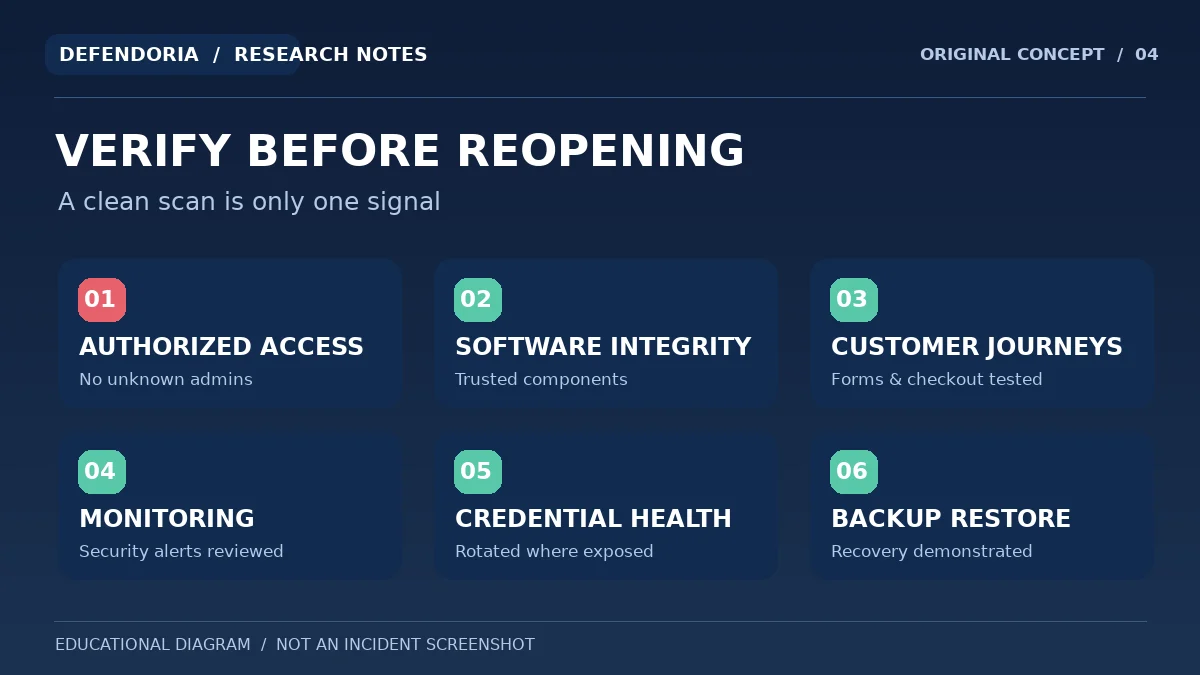
A malware scan reporting zero detections is helpful, but it is only one part of verification. Validate the specific warning signs that triggered the investigation: unexpected redirects, modified pages, suspicious users, changed checkout behavior, injected scripts or unfamiliar files. Test from relevant visitor conditions where the issue was conditional, and review accessible logs and account changes. Revisit the original incident timeline and document what evidence now supports the conclusion that the observed behavior has stopped.
Post-cleanup monitoring should include privileged account review, significant file changes, hosting alerts, regular maintenance, backup status and Google Search Console Security Issues. Keep records of any remaining known issues and the person responsible for them. If the problem returns, widen the scope instead of repeatedly replacing the same files from the same backup.
Malware removal checklist for business owners
- Make an incident record: affected URLs, warning messages, customer reports and recent changes.
- Identify the website owner, hosting administrator and response decision maker.
- Contain confirmed harmful visitor behavior through appropriate authorized changes.
- Preserve relevant logs and a protected snapshot before broad cleanup where feasible.
- Determine available backup dates, integrity and what business data each includes.
- Investigate administrator accounts, affected files, integrations and hosting settings.
- Use trusted vendor sources or tested backups to repair confirmed malicious changes.
- Remediate vulnerable components and close the access path supported by the evidence.
- Rotate exposed credentials and review privileged sessions and connected email.
- Test critical site functions and customer journeys in a controlled environment.
- Recheck original indicators, logs and Search Console after returning to service.
- Document owners for ongoing updates, monitoring and periodic recovery tests.
What should you avoid doing during a WordPress malware cleanup?
1. Deleting all suspicious-looking files immediately
File names, generated assets and plugin directories can look unusual even on a healthy installation. Preserve useful evidence and compare files to trusted references. An indiscriminate deletion can destroy functionality without removing the real attack path.
2. Restoring the first backup you find
The chosen backup may be incomplete, infected or missing recent customer data. Check its date, integrity and coverage. Restoring can be part of recovery, but not a substitute for addressing vulnerable software or stolen access.
3. Assuming a negative plugin scan means the problem is solved
Scanners have limited coverage and can miss custom code, external scripts, server-level persistence or another compromised identity. Use them as supporting evidence alongside access reviews, logs and validation of the reported symptoms.
4. Making changes without documenting them
Unrecorded password resets, plugin removals and server edits can make later analysis and rollback more difficult. Keep a short change log showing the action, authorization, time and observed outcome.
5. Treating every incident as an identical emergency
A single misconfigured redirect differs from a confirmed malicious checkout modification. Prioritize based on observed harm, plausible exposure and business dependencies, not only the severity label a tool assigned.
Frequently asked questions about WordPress malware removal
Can I remove WordPress malware without a developer?
It depends on the incident and your access. A well-documented, narrowly scoped configuration issue may be manageable for an experienced site administrator. A compromise involving customer data, server access, persistent reinfection or unclear root cause often requires specialist and hosting assistance. Authorization, backups and a rollback plan matter regardless of who performs the work.
Is reinstalling WordPress enough to remove malware?
Not necessarily. Reinstalling core files may replace modified components but can leave malicious plugins, database content, uploads, server rules, scheduled jobs or compromised credentials untouched. It can also overwrite customizations if performed carelessly. Investigate the affected systems and use trusted versions with compatibility checks.
Does deleting the infected plugin remove every backdoor?
No. An attacker may already have established another privileged account, changed server settings or injected content elsewhere. Removing a vulnerable component helps only if the full scope and persistence are addressed. Review access paths, related files, database changes and logs based on evidence.
Should I delete my .htaccess file?
Not blindly. On Apache hosting, .htaccess may hold legitimate WordPress routing and security rules; other web server configurations use different mechanisms. If an unauthorized rule is confirmed, preserve a copy and make a targeted change with an authorized administrator who understands the environment.
How do I know whether my backup is clean?
Compare backup dates with the earliest known compromise indicators, verify its source and integrity, and restore into an isolated test environment when possible. A backup produced after the intrusion could contain malicious files, while an older backup may lack newer customer data. There is no simple age threshold that guarantees cleanliness.
Will a security plugin detect every malicious file?
No. Detection depends on scope and methodology. Application scanners may miss hosting-level access, custom integrations, external scripts or unknown threats. Conversely, harmless modifications can sometimes trigger alerts. Confirm findings through trusted comparisons and additional evidence.
What if WordPress malware keeps coming back after cleanup?
Investigate persistent access, unpatched software, infected backups, other websites on shared hosting, scheduled tasks and compromised credentials. Recurrence means the original response may not have covered the full scope. Avoid repeating the same restore without examining why the attacker or unwanted behavior can return.
Can malware affect a WooCommerce checkout?
Yes. Malicious scripts or altered integrations could potentially affect checkout behavior or payment data handling. If you see unexpected payment destinations or scripts, prioritize customer safety and involve the payment provider and authorized technical team. Test important store functions carefully before reopening.
Can malware removal restore Google search visibility immediately?
No. Fixing hacked content is necessary when Google reports security issues, but search and browser warnings may require a review and processing time. Rankings and traffic also depend on many other factors. Use Search Console’s relevant reports and avoid promising guaranteed recovery dates.
How often should I check for reinfection after cleanup?
There is no universal interval. Monitor more closely immediately after an incident, then adopt a sustainable routine covering privileged users, file changes, logs, updates, backup health and customer reports. Increase attention where the site is business-critical or the root cause remains uncertain.
Primary sources and editorial notes
This educational article is informed by official WordPress and Google guidance and WP-CLI documentation about integrity checking. It is not a report of a customer incident, and Defendoria has not inspected the reader’s website. The images are original educational diagrams, not malware screenshots or proof of a remediation job. Always perform technical actions only on systems you own or are explicitly authorized to manage.
- WordPress.org: FAQ — My site was hacked.
- WordPress Developer Resources: Hardening WordPress.
- WordPress: Backing Up WordPress Files.
- WP-CLI: Core verify-checksums.
- WP-CLI: Plugin verify-checksums.
- WordPress Developer Blog: Website security checks with WP-CLI.
- Google Search Central: Preventing malware infection.
- Google Search Console: Security issues report.
This is general educational guidance, not a security assessment of a specific website. Obtain authorization before any technical testing.