Quick answer: WordPress file permissions determine which operating-system users can read, modify or traverse files and directories. On many Linux hosting setups, directories commonly use 755 and ordinary files use 644, with more restrictive settings for sensitive configuration files. But these are examples, not a one-size-fits-all security rule. The safest settings depend on ownership, groups, PHP execution mode and which paths WordPress legitimately needs to write. Never apply 777 or recursive permission changes to a live WordPress installation without understanding the consequences.
A hosting dashboard might display an unfamiliar number beside each file: 644, 755, 640 or something else. The number itself tells only part of the story. A website might fail to upload images because the wrong account owns an upload folder, while another website might have dangerous world-writable directories that allow an unrelated local process to modify code. Changing the number without checking ownership can solve neither problem and sometimes causes new ones.
This article explains permissions for business owners, WordPress administrators and agency managers without assuming every site uses the same server stack. It covers numeric modes, owners and groups, important WordPress directories, configuration files, safe read-only checks and how to work with the host before adjusting anything. It is not a live audit of a particular server, and the illustrations are conceptual diagrams rather than screenshots of real filesystem access.
- Typical examples: directories
755, files644; some environments use750and640. wp-config.phpdeserves tighter access appropriate to the host.- File ownership and PHP/web-server identity matter as much as numeric mode.
- Uploads need appropriate write access but should not broadly allow untrusted code execution.
- World-writable
777is a major warning sign, not a normal repair strategy.
Ask the hosting provider to confirm the exact PHP and ownership model before changing permissions.
How WordPress file permissions actually work
On Unix-like filesystems, ordinary mode bits control read, write and execute permissions for three categories: the file’s owner, members of its group and other users. Read lets an authorized process view file contents. Write permits modification. Execute on a regular binary or script indicates execution permission, while execute on a directory is principally the ability to traverse or search that directory. A directory often needs execute permission for a process to access files inside, even if the process is not running a program there.
Numeric modes combine these capabilities using read = 4, write = 2 and execute = 1. A digit of 7 means read/write/execute; 6 means read/write; 5 means read/execute; and 4 means read only. The first digit applies to the owner, the second to the group and the third to others. A file with mode 644 therefore allows the owner to read and write, and group and other users to read, subject to additional filesystem and server controls.
Permissions do not operate independently of identity. If WordPress’s PHP process runs as the site’s own account, it may be able to create files in a directory mode 755 without any world-write access. If PHP runs as a different user or group, the correct design may require group ownership or a controlled write mechanism. Two sites showing the same 755 value can have very different real access depending on ownership and hosting isolation.
What do 755, 644, 750, 640 and 777 mean?
| Mode | Owner | Group | Others | Typical interpretation |
|---|---|---|---|---|
| 755 | Read, write, traverse/execute | Read, traverse/execute | Read, traverse/execute | Common directory example |
| 644 | Read, write | Read | Read | Common ordinary-file example |
| 750 | Read, write, traverse | Read, traverse | None | More restrictive directory example |
| 640 | Read, write | Read | None | More restrictive ordinary-file example |
| 777 | Full access | Full access | Full access | World-writable; generally unsafe |
There is no universal permission number that covers every WordPress configuration. The WordPress security and hosting handbooks both emphasize minimum necessary access and server-specific setup. Documentation examples sometimes differ—for instance, 755/644 is common while 750/640 is possible with suitable group ownership. That is precisely why copying a command from a blog post without identifying your host’s process user can create outages.

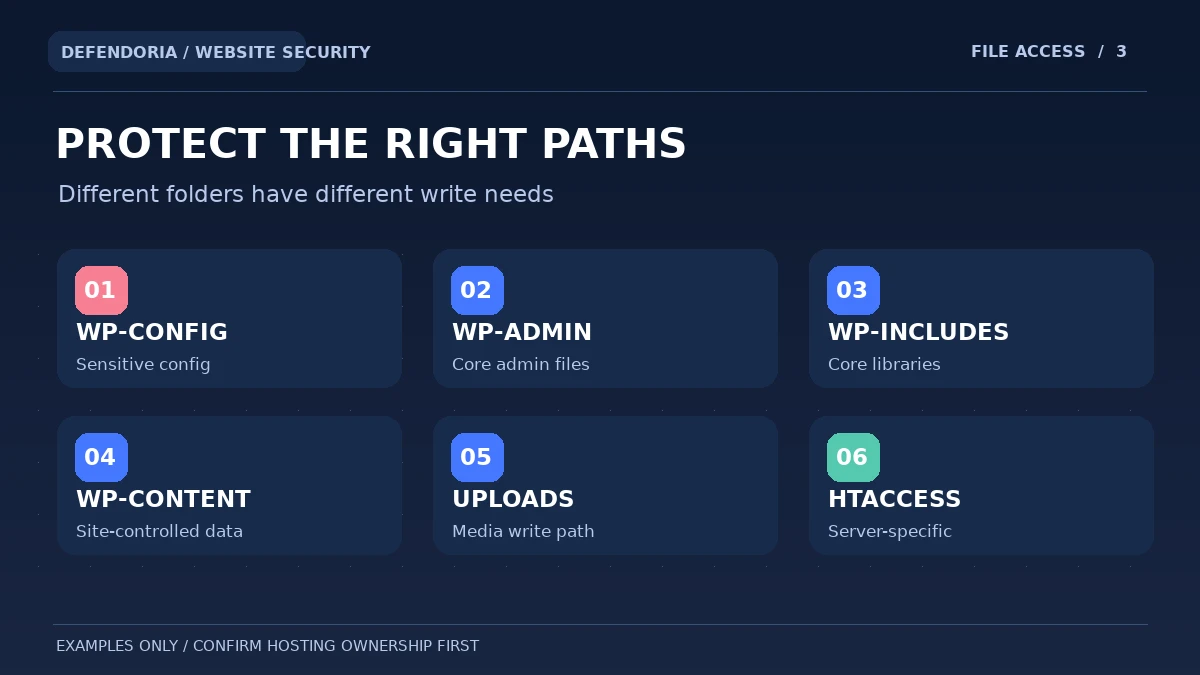
Which WordPress files and folders need different access?
1. The WordPress installation root
Most application code should not be writable by arbitrary web users. The official hardening guide recommends limiting write access to the necessary owner. Server configuration and automatic update tools affect how code changes are deployed, so establish which account performs updates before restricting ownership.
2. wp-admin and wp-includes
These directories contain important WordPress core files, not general user upload destinations. They ordinarily should not be broadly writable by unrelated accounts. Changes to core should happen through trusted update mechanisms. Unexpected modification may warrant investigation, but timestamp changes alone can result from a legitimate core update.
3. wp-content and uploads
WordPress stores themes, plugins, media and other application data under wp-content. Upload directories need enough write access for legitimate media uploads, but that does not mean all visitors or all processes should be able to modify them. Hosting-level restrictions against executing scripts in upload paths can add protection where appropriate.
4. Plugin and theme directories
Plugins and themes may need controlled updates from the site’s owner, deployment service or WordPress updater. The built-in editors have additional write requirements. If your organization never edits PHP from the dashboard, reducing unnecessary editing capability can be helpful, but verify how automated updates and development deployments will work.
5. wp-config.php
This configuration file can contain database connection details and other sensitive secrets. WordPress recommends tighter permissions that limit who can read it, commonly discussing settings such as 400 or 440 where the hosting setup supports them. The correct value depends on the PHP process and owner. Do not copy sensitive configuration into support tickets or public file locations.
6. .htaccess and server-specific files
On Apache setups, .htaccess can affect routing and access controls, but Nginx and other environments use different mechanisms. WordPress may need controlled writes to permalink rules depending on configuration. Setting it world-writable as a permanent workaround is not a safe default. Ask the host which server directives are effective and who should own them.
Discuss the hosting setup and observed errors as part of an authorized website review. Do not send configuration secrets or hosting passwords in the inquiry form.
Why changing permissions does not automatically fix a WordPress security problem
Restrictive mode bits reduce the opportunities for unauthorized processes to read or modify files, but they do not patch vulnerable plugins, secure weak passwords or remove malicious code already installed. Conversely, permissions that are too strict can stop automatic updates, media uploads and legitimate application behavior. Security involves the combined design of identities, software maintenance, backups and system isolation.
A malware scanner may flag a writable PHP file, but the response should identify whether the file genuinely must be writable by WordPress and which operating-system identity controls it. A compromised account with legitimate write permissions can still alter code. A strong configuration needs least privilege and monitoring, not just impressive-looking numeric modes.
How can a WordPress owner check file permissions safely?
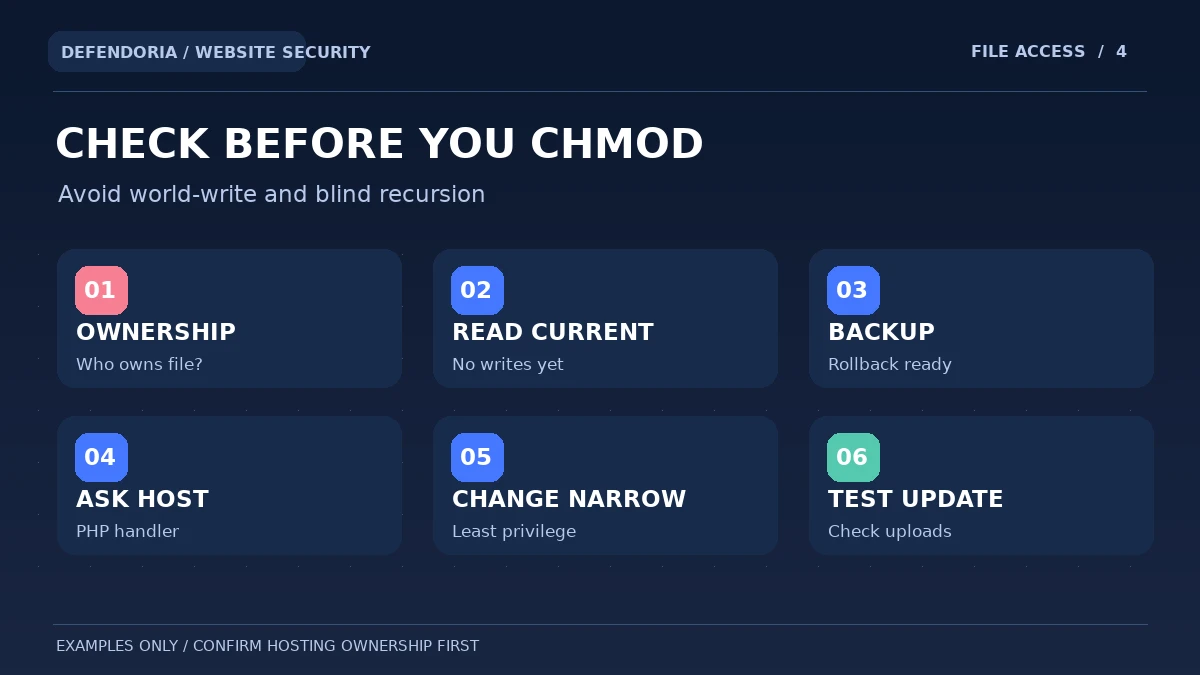
Start with read-only observation, not a recursive change. In many hosts, a file manager or SFTP client displays permissions and ownership details for individual files. An authorized administrator with shell access can also use read-only commands such as ls and stat. Review a small set of representative paths and ask the host to explain which account runs PHP, which account deploys updates, and how groups are assigned.
ls -ld wp-content wp-content/uploads wp-admin
stat wp-config.php
Run these only from the correct WordPress installation with appropriate permission. These commands inspect metadata; they do not change permissions. If the host uses a managed container or different path, its file manager may be more suitable.
Record the actual owner, group and mode rather than comparing one number with a screenshot from another provider. The owner of wp-content on shared hosting may differ from a containerized PHP-FPM environment. If you are unable to identify the effective service user, stop before making changes and request an explanation from the host. An error reading a path may reflect insufficient account privileges, not necessarily malware.
What should you do when WordPress cannot upload files or update plugins?
A file upload failure can result from insufficient write permissions, incorrect ownership, disk quotas, disabled PHP functions, temporary directories, provider restrictions or other errors. Check the actual application and hosting error messages instead of assuming a chmod command will fix everything. The hosting team can identify which process attempted the operation and what resource denied it.
If the path is correct but the web server is not authorized to write, a controlled ownership or group adjustment may be needed. Some hosts instead use a separate update service or ask for authorized filesystem credentials. Make the smallest change that satisfies legitimate work, verify the result, and record the old setting for rollback. Do not leave a folder world-writable after a troubleshooting session.
How to avoid common file-permission mistakes
1. Setting every directory and file to 777
This grants broad write access to other users and processes, creating an unnecessary attack path. If the website only works with 777, the likely question is why ownership or the PHP execution model is wrong. Ask the host to correct that design instead of using world-write as a normal state.
2. Recursively applying one mode to all files and directories
Directories and ordinary files need different semantics, and some sensitive files require tighter access. Blind recursive changes can remove needed traversal permissions or make secret configuration files readable. Inspect representative paths and plan narrowly scoped changes.
3. Ignoring file ownership
Changing mode bits may not help if the wrong user owns the file. Determine which identity runs the updater and which one runs PHP. Group membership and hosting isolation can be more important than the visible numeric mode.
4. Assuming WordPress documentation has one universal number
The official docs offer examples conditioned on hosting and ownership. A site using PHP-FPM may differ from traditional shared hosting. Even WordPress educational materials show both 755/644 and more restrictive examples. Follow the host’s tested requirements.
5. Confusing filesystem permissions with website user roles
WordPress Editors and Administrators are application roles; operating-system owners, groups and others are different access categories. A legitimate WordPress administrator may still be unable to change a file that the deployment service owns, and a compromised hosting account could alter code without logging into WordPress.
6. Forgetting to test business functions
After authorized changes, verify uploads, updates, page rendering, scheduled tasks and critical forms. A site that appears normal on the homepage may still have failed backups or disabled plugin updates. Keep a rollback owner and document any remaining issues.
A practical WordPress file-permissions review checklist
- Identify the legitimate owner of the website, hosting account and deployment process.
- Determine whether the environment uses shared hosting, PHP-FPM, a container or another model.
- Record read-only mode and ownership details for representative WordPress paths.
- Confirm wp-config.php is appropriately restricted and not publicly exposed.
- Review whether core directories can be modified only through trusted update routes.
- Verify uploads can be written by the intended process without broad world-write.
- Check for unnecessary execution capability in upload destinations where hosting controls permit.
- Investigate unexpected 777 settings and seek a least-privilege alternative.
- Back up and document the old state before making any authorized change.
- Test updates, uploads, forms, customer workflows and backup jobs afterward.
Frequently asked questions about WordPress file permissions
What permissions should WordPress files and directories have?
On many Linux WordPress hosts, directories commonly use 755 and files 644. Some setups appropriately use 750 and 640 or other restrictive values. Ownership, group membership and the PHP process determine what actually works. Confirm the hosting requirements before changing a live site.
Is chmod 777 ever a good permanent fix for WordPress?
No. It makes the target broadly readable, writable and executable by users and processes outside the owner, creating serious risk. If a folder only works under 777, ask the host to investigate ownership and service identity instead of leaving it world-writable.
What does 755 mean for a folder?
The owner can read, write and traverse the directory; members of the group and others can generally read and traverse it. Execute on a directory mainly means permission to traverse or search it, not that every file inside is automatically an executable program.
What does 644 mean for a file?
The owner has read and write access, while the group and others have read access. Whether that is appropriate depends on the file contents, ownership and hosting isolation. Sensitive configuration files may need tighter restrictions.
Should wp-config.php be set to 400 or 440?
WordPress’s hardening guidance discusses restrictive settings such as 400 or 440 where supported, but the correct mode depends on which user or group must read the configuration. Making it unreadable to PHP can break the website. Confirm host requirements and backup access before modifying it.
Why does WordPress ask for FTP credentials during updates?
The update process may not have direct write access with the correct ownership. WordPress uses filesystem and ownership checks when choosing an update method. The safest solution may involve the hosting account or deployment service rather than making application files world-writable.
Can wrong permissions cause a WordPress 403 or 500 error?
Yes, permission or ownership problems can contribute to access errors, but 403 and 500 responses have many possible causes, including server configuration and application errors. Review actual logs and recent changes instead of applying a universal chmod fix.
Can a plugin change WordPress filesystem permissions?
Some plugins or management tools may change files or directories within their authorized permissions, but hosting-level controls still apply. If unexpected changes are observed, review recent updates, plugin behavior and account activity before attributing them to malware.
Do file permissions stop hackers from editing WordPress?
They can reduce unnecessary filesystem access, but cannot replace patching vulnerable plugins, strong accounts, monitoring or incident response. If an attacker controls an identity with legitimate write permission, those permissions may still permit changes.
Should I run a recursive chmod command on my entire site?
Not without a qualified plan and explicit authorization. Broad changes can expose sensitive files or break normal operations. Start with read-only inspection, identify ownership and the host’s required model, back up the current state and change only the necessary paths.
Official sources and editorial transparency
This guide is informed by WordPress’s official hardening, file-permission, update and hosting security documentation, plus OWASP filesystem access-control guidance. It does not claim to assess the permissions of any real Defendoria customer server. The graphics are original educational diagrams and should not be treated as a universal configuration policy.
- WordPress Developer Handbook: Changing File Permissions.
- WordPress Developer Handbook: Hardening WordPress.
- WordPress Hosting Handbook: Security.
- WordPress.org Documentation: Updating WordPress.
- WooCommerce: Using FTP to Manage a Site.
- WordPress Developer Handbook: wp-config.php.
- OWASP WSTG: File Permissions Testing.
This is general educational guidance, not a security assessment of a specific website. Obtain authorization before any technical testing.