
Quick answer: WordPress malware often appears to return because the cleanup removed a visible malicious file or redirect without removing the underlying access path. Possible causes include an unpatched extension, stolen credentials, another backdoor, a server-level scheduled process, cross-site infection on shared hosting, or restoring an infected backup. Repeated symptoms are evidence that the investigation needs to widen—not proof that a particular plugin or cleanup company caused the recurrence.
You might recognize the pattern: a WordPress scanner detects suspicious code, someone deletes the flagged file, the homepage looks normal, and several hours later spam links reappear. In another situation, an agency rebuilds the site from a backup but the same unauthorized administrator account returns a few days later. Both situations are frustrating, especially when someone has already spent money on removal. The important question is not merely which file came back; it is what retained the ability to recreate it.
This guide focuses on recurrence and persistence rather than repeating a general malware-removal tutorial. It explains how to separate genuine reinfection from cached or mistaken reports, how to interpret timing and access evidence, and what a broader root-cause investigation should cover. The recommendations are drawn from official WordPress hardening and hacked-site guidance, plus documented Wordfence security investigations. They are not a diagnosis of your particular website.
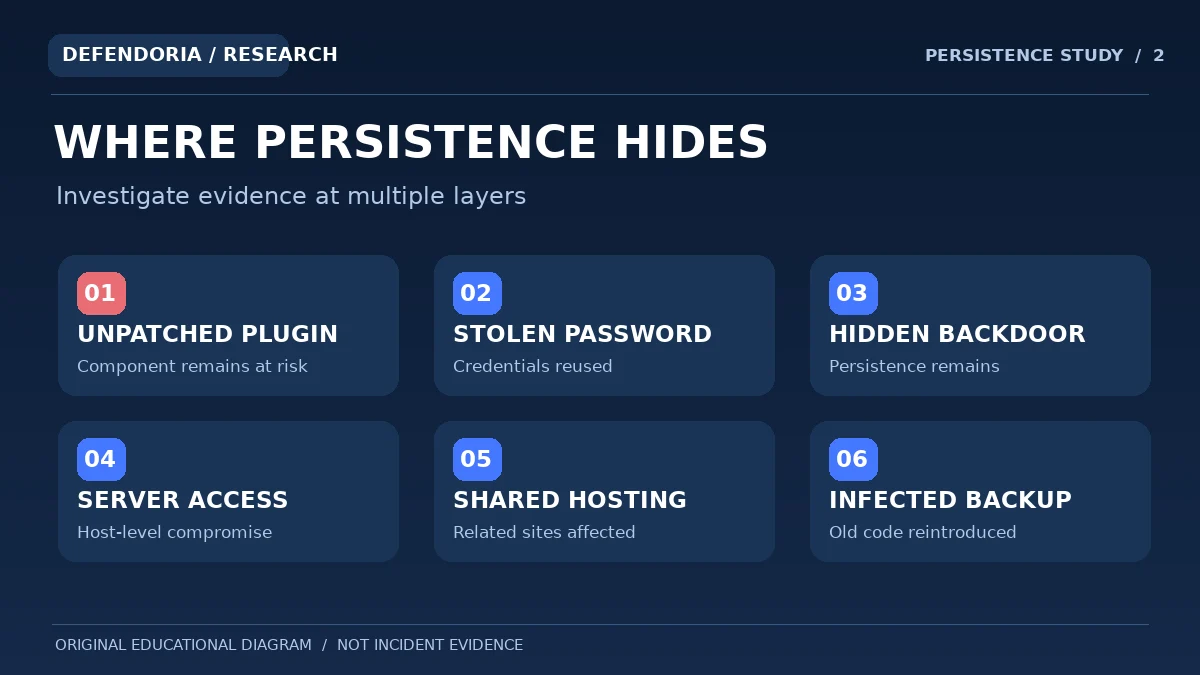
- The original vulnerable software remains exposed.
- A compromised user, hosting account, or connected email still has access.
- A hidden component or scheduled process recreates the unwanted change.
- Another website or service in the shared environment remains compromised.
- The backup or deployment process restores infected content.
- Cache or monitoring behavior makes an old incident appear new.
Record exactly what returned and when before deleting or restoring anything else.
What does WordPress malware reinfection actually mean?
A true reinfection occurs when malicious behavior or code reappears after the site was believed to be cleaned. The recurrence could be a new attack exploiting the same weakness, or the activation of an existing persistence mechanism that was never removed. Some apparent recurrences are not new infections at all: a CDN may serve a cached page, a scanner may report an old record, or a legitimate file may be incorrectly flagged. These possibilities produce different timelines and should not be treated as interchangeable.
For example, if a suspicious file is recreated at nearly the same interval after deletion, that pattern may point investigators toward a scheduled task or another program with permission to write the file. If an unknown administrator logs in just before the change, privileged access is more relevant. If a spam page continues to appear in Google’s index but cannot be reproduced on the live site, search reporting and caching deserve investigation before claiming that malware has returned.
A successful cleanup should address the unauthorized behavior, the access path or persistence that allowed it, and the verification conditions needed to have reasonable confidence in recovery. No limited investigation can guarantee permanent safety, but clear evidence and layered controls reduce the uncertainty.
Six reasons malware can keep coming back
1. An unpatched or unsupported extension remains installed
A vulnerable plugin or theme may be the initial entry point even if the visible malware is found in a different file. Removing the payload without repairing the affected component leaves the route open. The attacker or automated exploit traffic may simply use the same weakness again. Investigate relevant versions, vendor advisories and whether the extension is still supported.
Do not assume that every outdated plugin caused the incident. Verify which component was exploited when evidence allows, and prioritize known vulnerabilities and unnecessary software. A complete component inventory is better than deleting whichever plugin happens to have an unfamiliar name.
2. Privileged credentials or sessions were not fully secured
Someone with administrator, hosting, database, SFTP or connected email access may be able to reintroduce malicious content even if the WordPress filesystem is rebuilt. An email account that controls password resets can be part of the access chain. Some active sessions and tokens may continue working after limited password changes depending on the service and configuration.
Review all relevant identities with authorized owners and use trusted devices to rotate credentials considered exposed. Remove access that is no longer needed, enforce multifactor authentication where available, and consider how the attacker first obtained the credentials rather than treating password rotation as the whole investigation.
3. Another file or component recreates the deleted malware
A hidden backdoor or modified plugin can write new malicious files, insert scripts or reset unauthorized settings. WordPress websites also use legitimate scheduled tasks, caches and generated configuration, so an automatically recreated file does not by itself prove malicious scheduling. The task is to identify which component wrote the file and whether that action was authorized.
Compare timestamps, ownership and available execution logs. Preserve representative copies before removal. Avoid launching suspected code in a production browser or environment, and do not assume a normal-looking plugin title is a guarantee of safety.
4. The persistence lives above the WordPress application
A compromised web-host control panel, server service, webmail application or other system may have write access into a WordPress installation. In that case a WordPress-only scan can report clean results while a separate privileged component changes files afterward. A host-level investigation is needed when evidence points outside the webroot or when normal WordPress persistence checks find nothing.
Some providers may not expose full logs or system access to a shared-hosting customer. Escalate to the hosting security team and establish which systems are in scope. Do not use unauthorized system commands or tamper with services you do not control.
5. A related website on shared hosting remains compromised
Businesses sometimes host several WordPress sites, staging copies, or old applications under one hosting account. Poor separation or shared access credentials can let a compromise in one property affect another. Cleaning only the most visible site may leave a neglected sibling installation or shared service as a source of repeated changes.
Review the inventory of domains, subdomains, old staging sites, database users, file ownership, and account access with the host. Shared hosting does not automatically mean your neighbor infected you; the relevant question is whether the affected resources and permissions actually overlap.
6. An infected backup or deployment process restores unwanted code
Restoring a compromised backup can reintroduce a malicious file, database record or vulnerable component. The same applies to a deployment package that contains unsafe changes, or a synchronization tool that copies altered files from a compromised machine. A clean-looking restore does not establish that the backup predates the first intrusion.
Check backup history, integrity and scope, plus the source of uploaded or deployed assets. Restore in a controlled environment where possible and investigate the cause before putting the same configuration back online.
What actual security research tells us about persistence
Wordfence reported a 2025 case involving malware disguised as a security plugin. Its research described changes affecting wp-cron.php and a malicious plugin that could recreate unauthorized access and theme injections. The significance for a website owner is not the specific filename—which may be irrelevant to your incident—but the mechanism: a hidden component can restore a visible payload after that payload is removed. The case also illustrates why verification must go beyond whether one suspicious file is currently present.
In a separate Wordfence forensic report published in May 2026, researchers described a WordPress site where unwanted changes returned despite a clean WordPress-level inspection. The investigation ultimately identified persistence in the surrounding server and webmail environment. This was a specific documented incident, not evidence that most WordPress reinfections use the same pathway. It demonstrates why a host-level scope may be warranted when the normal WordPress layers appear clean but files continue changing.
These studies should guide investigative questions, not inspire copy-and-paste deletion or exploitation attempts. The useful questions are: what process can write the affected file, under which account, when did it execute, and which earlier event gave it access? Answering those through authorized logs and secure forensic procedures provides much more value than guessing based on a popular malware name.
Share the timeline and warning signs to discuss a scoped, authorized review. Do not include sensitive passwords in the inquiry form.
How to distinguish a genuine recurrence from stale alerts
Before calling it another hack, establish whether the suspicious behavior is active. A cached page can show an old injection, especially when different users receive different cache variants. A Google result can retain a reference to a deleted URL during reprocessing. A scanner may retain a record of a previous incident or flag a legitimate file after an update. Conversely, malware that only affects anonymous mobile visitors may appear absent in your logged-in tests. Both false reassurance and false alarms are possible.
| Observation | Possible explanation | Useful check |
|---|---|---|
| File reappears after deletion | Scheduled task, deployment or hidden writer | Preserve timestamps and identify the process or owner |
| Old spam page remains in Google | Index processing delay or still-active URL | Compare live URL, Search Console and known source of page |
| Only some visitors see redirect | Conditional injection or cache variation | Document device, session and referrer conditions safely |
| Scanner reports same finding | Persistent infection or stale/false alert | Review report scope and independently verify evidence |
| Backup restore brings malware | Compromised recovery copy or continuing access | Inspect provenance, changes and external accounts |
A practical investigation when malware reappears
Once the symptom is verified, move from broad assumptions toward a repeatable evidence record. You do not need to perform intrusive testing simply to build a timeline. The website owner and authorized technical staff can often establish useful context using backups, update logs, Search Console, approved deployment records, and hosting notifications. Where deeper process or filesystem records are required, the hosting provider or a qualified response team should be involved.
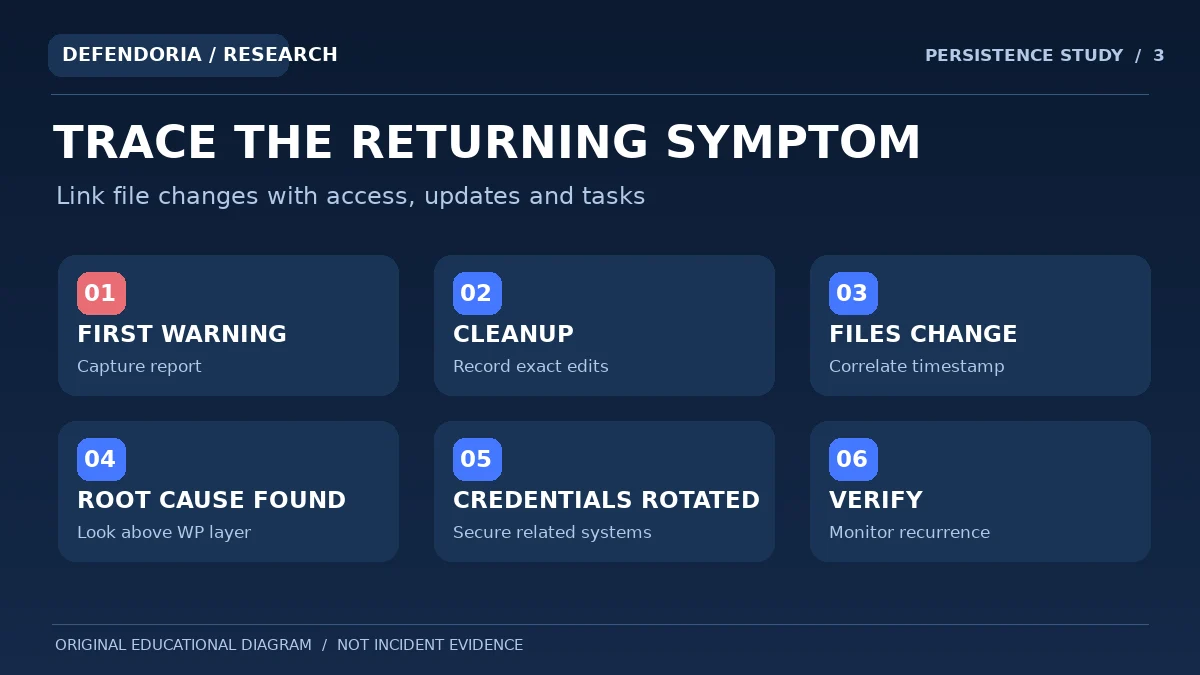
1. Record exactly what returned and when
Identify the specific URL, file path or security warning that reappeared, along with the time and timezone. Compare its content with the original incident, since a new phishing page and a repeated old scanner finding are not the same event. Save screenshots and controlled copies of relevant evidence where appropriate. Avoid publicly posting sensitive paths, tokens or private customer data.
2. Reconstruct the clean-up and restoration history
List every change made since the previous cleanup: updated plugins, restored backups, rotated credentials, reverted files, removed accounts and changes to hosting or CDN rules. Note which fixes were verified and which were assumed. It is common for several administrators to act independently during an incident; a shared timeline reduces uncertainty.
3. Correlate file modifications with other events
Ask the host to compare file modification times with available server logs, scheduled jobs, administrator activity, backups and deployments. A regular interval may suggest a recurring process, but it does not prove that WordPress’s own scheduler is responsible. Look for evidence of the writing process rather than deleting whichever task looks unfamiliar.
4. Reevaluate the original access path
Consider which systems could still change the affected content: privileged WordPress users, hosting panels, SFTP, database accounts, code repositories, build services and connected email. Rotate or revoke access according to the incident evidence from trusted devices. Review whether the compromised component remains supported and whether other applications share the same credentials.
5. Expand beyond WordPress if necessary
If core, plugin and database checks are clean but malicious changes recur, ask the hosting team to examine relevant server-level access and related services. The 2026 Wordfence case illustrates why this can matter, but each environment is different. Do not attempt to inspect or modify hosting infrastructure outside your authorization.
6. Validate recovery against the original recurrence pattern
After remediation, repeat safe checks for the specific affected visitor conditions and observe the system through a suitable monitoring period. Confirm file integrity, privileged access and essential business functions. A short clean interval provides useful evidence, but it is not a guarantee that every possible hidden threat has been eliminated.
Should you rebuild WordPress from scratch?
A rebuild can be appropriate when trust in the existing application is badly damaged or available evidence makes targeted cleanup unreliable. But it is a business and technical decision, not an automatic requirement for every redirect. A new installation deployed with the same exposed hosting credentials, vulnerable extension or compromised synchronization process can still become infected. Rebuilding must therefore include trusted source packages, secure identities, reviewed dependencies and careful data migration.
For a brochure site, the rebuilt environment may be relatively simple. For a WooCommerce store, you also need to preserve valid orders, customer accounts and integrations without importing attacker-controlled data. A fresh copy of WordPress alone cannot restore missing records or independently prove the safety of an old database. Plan backups, staging tests, migration controls and rollback before moving production traffic.
A 30-day post-cleanup monitoring plan
Monitoring should be proportional to the business risk and what the incident exposed. The following intervals are illustrative operational planning choices, not official guaranteed detection windows. A high-impact incident may require closer real-time oversight, while a low-risk, well-understood issue may need less intensive attention.
Days 1–3: Watch the original signals closely
Review the specific suspicious URL or file, privileged accounts, server alerts, email from the host, and important customer flows. Ask whether the same symptom has returned and whether any remediation-related functionality has broken. Preserve relevant timestamps and do not dismiss a report just because one scanner now says clean.
Days 4–14: Verify consistency across systems
Check software update status, file-integrity results where applicable, backups and the ownership of privileged accounts. Review any recurrent task or deployment system that was connected to the earlier problem. If multiple websites share hosting, confirm that the agreed cross-site and account-level checks were completed.
Days 15–30: Review operational readiness
Reassess monitoring rules and access ownership, test a controlled restore where feasible, and document outstanding risks. Consider whether a recurring maintenance or managed security arrangement would help the business maintain update and recovery discipline. A provider should explain the service scope, not imply that continuous monitoring makes compromise impossible.

Prevention is layered, not a single switch
WordPress’s hardening documentation recommends limiting access, maintaining software, using trusted sources, securing the hosting and administration environment, and keeping appropriate backups and logs. Those recommendations matter particularly after an incident, when the weakness may already be known to an attacker. Clear ownership reduces the chance that a forgotten plugin or orphaned administrator account silently reopens access.
- Keep WordPress core, extensions and the host environment supported and updated.
- Remove unused plugins, obsolete staging applications and unneeded administrator roles.
- Use unique passwords and multifactor authentication for critical accounts when supported.
- Protect domain, email, hosting and deployment access—not only WordPress login.
- Maintain isolated, tested backups with a clear restoration owner.
- Track authorized changes and meaningful file or configuration modifications.
- Use monitoring that covers application and host events appropriate to your setup.
- Review the incident record when a similar warning appears instead of repeating old guesses.
Frequently asked questions about recurring WordPress malware
Why does the same malicious file return a few hours after deletion?
A separate process or actor may still be able to write that file. Possible explanations include scheduled activity, compromised credentials, an unremoved backdoor, deployment synchronization or host-level access. The timing is useful evidence, but it does not identify the source by itself. Preserve timestamps and ask an authorized administrator to establish what actually recreated the file.
Could WP-Cron be causing reinfection?
It is one possibility in a specific incident, but WordPress scheduling is also widely used by legitimate plugins. Wordfence has documented malware that involved wp-cron.php, which does not mean that any recurring WordPress task is malicious. Investigate task ownership, related code and timestamps rather than disabling all scheduling blindly.
Why can a scanner show clean results while the site is still infected?
A tool can inspect only what it has access to and knows how to detect. Malware may live in a server-level service, external script, connected account or another site on the same host. A scan might also run between malicious file rewrites. Treat a negative result as one piece of evidence, not a guarantee.
Will changing WordPress administrator passwords stop the problem?
Changing exposed passwords is important, but it may not address compromised hosting access, connected email accounts, active sessions, vulnerable plugins or existing server-level persistence. Review the access paths supported by the evidence and use multifactor authentication where available.
Can an infected backup keep restoring malware?
Yes. A backup made after compromise can include malicious files, injected database settings or vulnerable components. A restored site can also be reinfected if the original entry point remains. Check recovery-copy provenance and test restoration in a controlled environment rather than assuming any archive is trustworthy.
Does reinfection always mean the original cleanup was done incorrectly?
Not necessarily. The response may have been limited by missing logs, insufficient server access, another compromise, or incomplete scope. It may also be a new incident exploiting a separate weakness. Compare evidence and timing rather than assigning blame without facts.
Can another WordPress site on shared hosting affect mine?
Potentially, depending on account permissions, isolation and shared services. Poor segregation or reused credentials can make related applications relevant to an incident. A neighbor’s infection is not proof your site is compromised. Ask the host to review the actual shared resources and access boundaries.
How long should I monitor after a successful cleanup?
There is no universal safe interval. Review the original recurrence pattern and risk level, and establish a practical monitoring plan for logs, privileged users, file integrity, updates, backups and customer reports. More intensive monitoring may be warranted when the initial scope was large or the root cause uncertain.
Can a website be secure without installing another security plugin?
Security is a combination of maintained software, controlled identities, hosting configuration, backups, monitoring and incident readiness. Plugins can add useful controls, but no product replaces those responsibilities or guarantees that every intrusion will be detected.
When is professional reinfection investigation appropriate?
Escalate when malware returns repeatedly, payment or customer information may be affected, WordPress-only checks are inconclusive, several websites share the affected environment, or the host-level scope is beyond the team’s access. Ask for documented scope, secure credential handling and clear verification steps.
Sources and transparency
The analysis is based on official WordPress documentation and publicly documented Wordfence investigations. The two cited Wordfence incidents are illustrations of specific persistence techniques, not proof that a particular site was affected in the same way. This article does not claim that Defendoria inspected an actual customer environment. The graphics are original conceptual illustrations, not evidence screenshots.
- WordPress.org: FAQ My site was hacked.
- WordPress Developer Resources: Hardening WordPress.
- Wordfence 2025: Malware disguised as an anti-malware plugin.
- Wordfence May 2026: Webmail log file becoming a root-level backdoor.
- WordPress Developer Blog: Website security checks using WP-CLI.
- Google Search Central: Preventing malware infection.
This is general educational guidance, not a security assessment of a specific website. Obtain authorization before any technical testing.